Introduction
An AI image upscaler is a practical online tool for making small, soft, or pixelated images look larger and clearer. Upscale Image, available at upscaleimg.org, is an AI image upscaler that improves resolution, sharpens details, and enhances photo quality directly in a web browser. The service supports portraits, product photos, old photos, artwork, and bulk image enhancement tasks.
What is AI Image Upscaler?
Upscale Image is an AI image upscaler created for anyone who needs clearer images without using complicated editing software. The common problem is simple: when a low-resolution image is enlarged normally, it becomes blurry or pixelated. This AI image upscaler tries to solve that by rebuilding edges, textures, and fine details while the image size is increased.
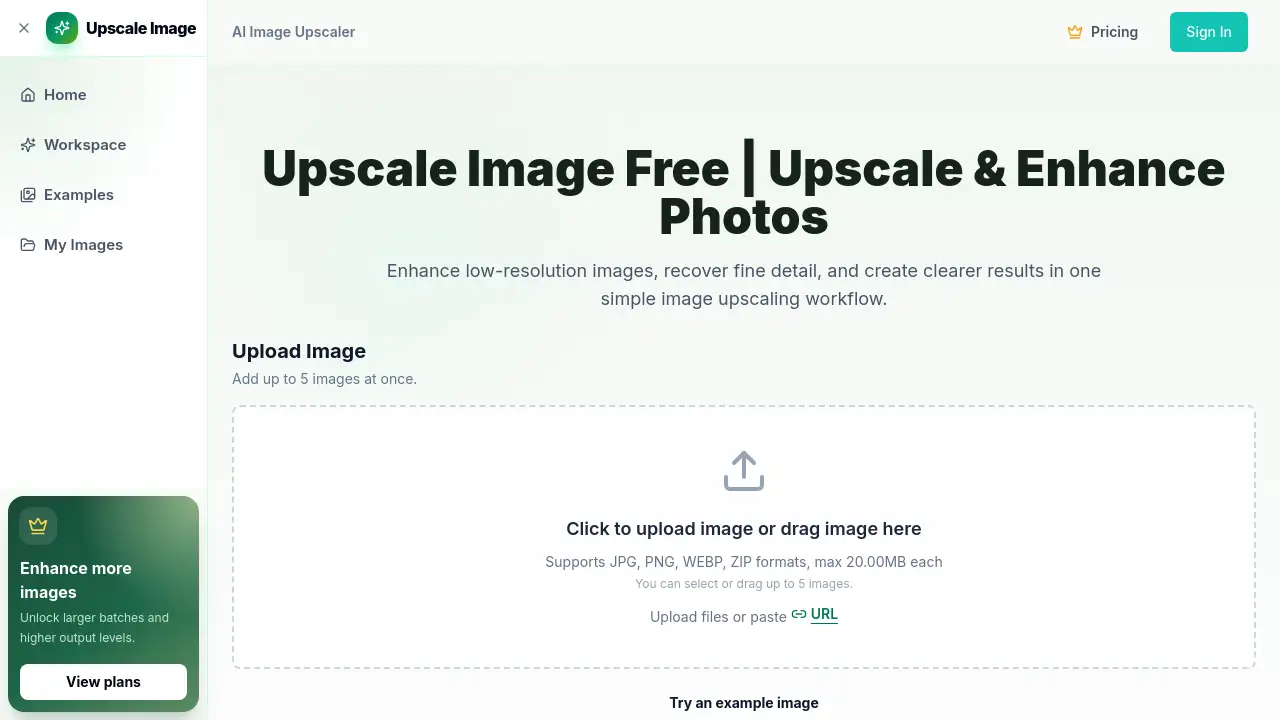
The workflow is straightforward. Users upload files, choose an image type and resolution level, apply optional Face Enhance, preview the result, and download the finished image. The homepage also says the tool supports up to 5 images at once. This makes batch image upscaling practical for people working on multiple portraits, product photos, or creative files. Supported upload formats include JPG, PNG, WEBP, and ZIP, with a maximum file size of 20 MB per image.
An AI image upscaler like this matters because high-resolution visuals are expected across ecommerce, social media, presentations, and print. Not everyone has access to advanced desktop software. An online tool that can upscale images online is useful for quick projects and simple workflows.
Key Features of AI Image Upscaler
Browser-Based Image Enhancement
Upscale Image runs in the browser, so there is no need to install image editing software. Users can drag and drop files, click to upload, paste images, or use a direct image URL. This makes it easy to enhance photo quality on desktop, tablet, or mobile.
Batch and Bulk Image Upscaling
The interface allows users to add up to 5 images at once. The same image type and scaling choice can be used across the full set. This batch image upscaling feature is helpful for processing multiple product photos, portraits, artwork files, or old images in one session.
Flexible Resolution Choices
Users can select a multiplier such as 2×, 4×, 6×, or 8× from the workspace. This helps increase image resolution to a size suitable for web pages, ecommerce listings, social media, presentations, and printed materials. The homepage also highlights 4× and 8× image upscaling for larger output.
Face Enhance Option
For portraits and photos with people, Face Enhance can help sharpen the eyes, hair, fabric, and skin texture. The goal is to create clearer facial details without an overprocessed look. This feature is useful for improving selfies, profile photos, and client headshots.
Before and After Preview
The website includes comparison sliders and side-by-side examples. Users can compare the original soft image with the AI upscaled result before downloading. This is a helpful way to judge image quality and confirm that details have been recovered.
Output Format Flexibility
Users can set the output format as part of the process. The upload area accepts common file types like JPG, PNG, and WEBP, plus ZIP packages for multiple files. This makes the online image upscaler more flexible for different workflows.
Use Cases for AI Image Upscaler
Improving Soft Portraits and Selfies
An AI image upscaler is useful for portrait photos that look soft or slightly out of focus. It can make eyes, hair, and skin texture look clearer while keeping the face natural. This is helpful for profile pictures, personal photos, and professional headshots.
Upscaling Product Images for Ecommerce
Product sellers often need high-resolution images for catalogs, online marketplaces, and social ads. A product image upscaler can increase image resolution, recover material texture, and clean up edges so buyers get a better view of the item.
Restoring Old Family Photos
Old photo restoration is another common use. Faded, blurry, or low-resolution family photos can be enhanced with better clarity while preserving the original character, grain, and faces. This makes old photo restoration more accessible to general home users.
Processing Bulk Creative Work
Designers and content creators can add multiple images to one queue. Batch image upscaling handles photos from a single project with the same 2×, 4×, 6×, or 8× settings. This reduces repetitive work when many files need to be enlarged and sharpened.
How to Use AI Image Upscaler
- Open the Upscale Image workspace at upscaleimg.org.
- Upload an image by dragging it into the upload area or clicking the Add Image button. Up to 5 images can be added at once.
- Choose the image type and resolution level. The interface includes options such as Face Enhance and Output Format.
- Preview the upscaled result and compare it with the original image.
- Download the final high-resolution image when the result looks ready.
This simple workflow makes it possible to upscale images online in just a few steps.
Target Audience for AI Image Upscaler
- Social media creators who want clearer profile images and posts
- Ecommerce sellers who need sharper product photos
- Photographers and portrait shooters looking for quick AI upscaling
- Designers who need high-resolution assets for presentations
- Families restoring old photographs
- Anyone who regularly needs a fast, simple image upscaler
Is AI Image Upscaler Free?
The reviewed homepage content does not include a detailed public pricing table. The Upscale Image workspace is open for visitors to upload files, choose settings, and compare results. This suggests users can try the service without downloading software.
Because the reference content does not clearly list free plan limits or paid subscription prices, users should check the official Upscale Image website for current pricing details.
AI Image Upscaler's Pros and Cons
| Aspect | Pros | Cons |
|---|---|---|
| Ease of use | Simple browser-based workflow; no software setup | Requires an internet connection |
| Batch processing | Supports up to 5 images at once | Each file is limited to 20MB |
| Features | Multiple scaling choices, preview, and Face Enhance | Public pricing and plan details are not listed in the available content |
Frequently Asked Questions about AI Image Upscaler
What does an AI image upscaler do?
An AI image upscaler increases image resolution and enlarges low-resolution images while improving edges, textures, and visible detail. The goal is to produce a clearer, sharper high-resolution result.
Can I upscale an image without losing quality?
AI upscaling is designed to enhance photo quality, sharpen details, and reduce pixelation better than basic resizing. The final result still depends on the original image and the amount of detail available in the source file.
Which image formats are supported?
The upload area supports JPG, JPEG, PNG, WEBP, and ZIP formats. Direct HTTPS image URLs can also be used. Files have a maximum size of 20MB each in the reviewed workflow.
Can I use a batch or bulk image upscaler?
Yes. Users can add multiple images to the batch workflow, keep them in one queue, preview results, and download finished files. Up to 5 images can be added at once.
Can I upscale images by 2×, 4×, 6×, or 8×?
Yes. Choose the enlargement level that fits your project from the available resolution options. The homepage highlights popular 4× and 8× high-resolution image upscaling.
Does the tool include Face Enhance?
Yes. Face Enhance is available for portraits and photos that contain faces. It helps sharpen details such as eyes, hair, and skin texture while aiming for a natural appearance.
AI Image Upscaler Tags
AI image upscaler, upscale images online, increase image resolution, enhance photo quality, batch image upscaling, bulk image upscaler, old photo restoration, product image upscaler, portrait photo enhancer, online photo upscaler, 4x image upscaler, 8x image upscaler