Introduction
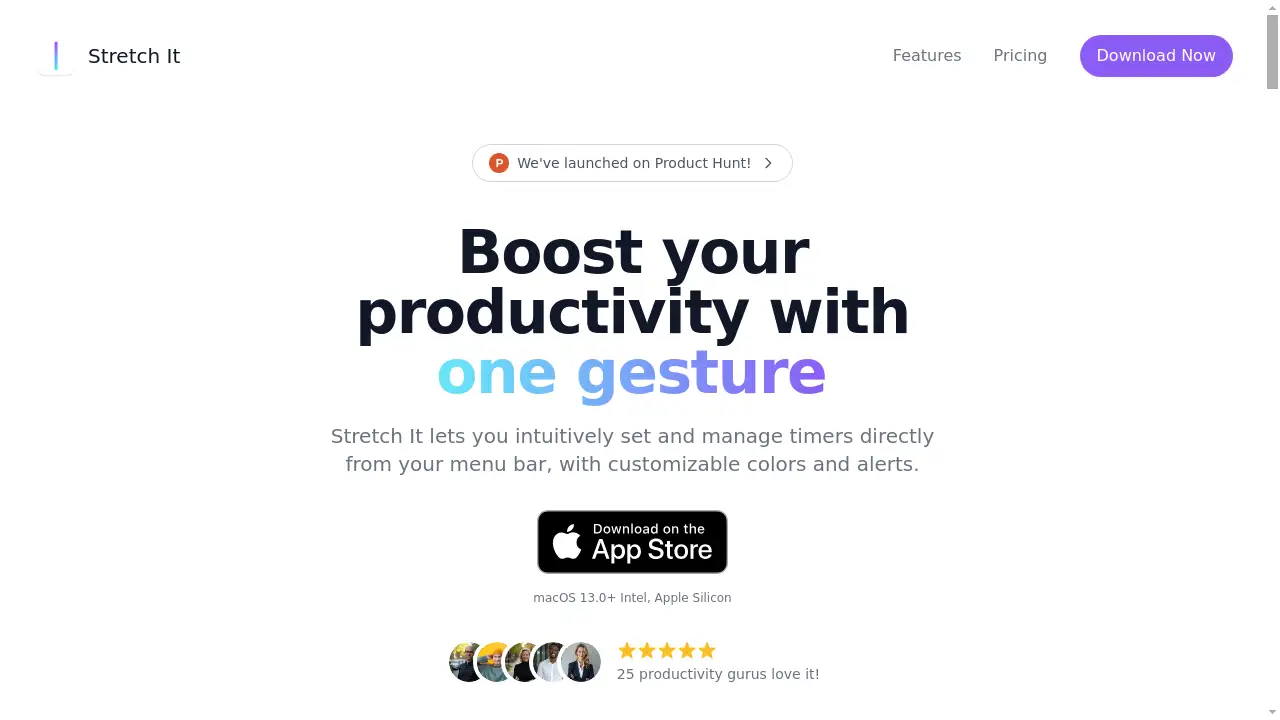
A minimalist gesture timer from your menu bar for effortless time management.
What is Stretch It?
Stretch It is a minimalist timer application designed for the macOS menu bar. It addresses the common problem of clunky, time-consuming time-tracking tools by offering an intuitive, gesture-based interface. The product eliminates the friction of starting a timer, allowing users to set countdowns for tasks instantly without navigating through complex menus or dialog boxes. It is particularly suitable for individuals seeking to boost productivity, manage time more effectively, and maintain focus with minimal digital distraction. The core value of this menu bar timer lies in its seamless integration into an existing workflow, acting as a lightweight tool that gets the job done without getting in the way.
Key Features of Stretch It
Gesture-Based Timer
Simply click and drag the menu bar icon to set a timer, using an intuitive, elastic stretching motion to define the countdown duration.
Flexible Timing
Set timers ranging from a few seconds to several hours by using simple keyboard modifiers like Shift and Option for extended or shortened ranges.
Minimalist Interface
The design is clean and focused, residing discreetly in the menu bar to provide functionality without any on-screen clutter or distractions.
Fully Customizable
Adapt the timer's appearance, including its color, to automatically match your system theme or choose a custom one that fits your workflow.
Custom Notifications
Receive clear desktop alerts when your timer ends, ensuring you never miss the completion of a task or session.
Choice of Chimes
Select from different alert sounds to audibly distinguish between various types of timers, such as for work sessions versus breaks.
Multi-Monitor Ready
The timer functions seamlessly across all connected displays, making it easy to keep track of time regardless of your setup.
Use Cases for Stretch It
Focus Sessions
Set precise intervals for productive, deep work sessions to maintain concentration and manage energy levels effectively.
Quick Breaks
Schedule short, mindful pauses during a workday to prevent burnout and stay refreshed without losing track of time.
Cooking Timers
Never overcook or undercook meals again by setting accurate timers for recipes, from boiling pasta to baking.
Reminder Alerts
Use it as a simple reminder system for important daily tasks, like picking up children from school or starting a meeting.
How to Use Stretch It
Using Stretch It is designed to be an effortless process that integrates into your routine.
- Access the Timer: Locate the Stretch It icon in your Mac's menu bar.
- Set the Duration: Click and drag the icon horizontally. The further you drag, the longer the timer duration.
- Use Modifiers for Precision: For timers under one minute, hold the Option (⌥) key while dragging. For timers longer than 90 minutes, hold the Shift (⇧) key.
- Release to Start: Let go of the mouse or trackpad to start the countdown instantly. A desktop notification and sound will alert you when the time is up.
Target Audience for Stretch It
- Professionals and freelancers looking to implement productivity techniques like the Pomodoro method.
- Students needing a simple tool to time study sessions and breaks.
- Home cooks who require reliable and quick timers for recipes.
- Anyone seeking a lightweight, non-intrusive alternative to complex reminder or time-tracking software.
Is Stretch It Free?
Stretch It is a paid application with a one-time purchase price. It is currently available for $4.99 USD, discounted from its regular price of $9.99. This single payment grants unlimited usage of the timer, access to all customizable colors and sounds, support for multiple screens, and includes all future updates. There are no monthly subscriptions or recurring fees.
Frequently Asked Questions about Stretch It
Can I set a timer for less than one minute?
Yes. By holding the Option (⌥) key while dragging the menu bar icon, you can set a timer for any duration between one second and sixty seconds.
Can I set a timer for longer than an hour and a half?
Yes. By holding the Shift (⇧) key while dragging, you can extend the timer range up to twelve hours.
Can I give the timer a name or label?
No, this feature is not currently available. The design philosophy prioritizes speed and a clutter-free experience, making it a quick timer for immediate use. The developer has indicated a separate, more feature-rich reminder version may be considered in the future.
Can I run multiple timers at once?
The current version of Stretch It is designed for a single timer at a time to maintain its minimalist approach. A version supporting multiple timers is not currently on the immediate development roadmap.
Why don't I see a notification when the timer ends?
First, ensure notifications are enabled for Stretch It in your Mac's System Settings under Notifications. Then, check that a Focus mode (like Do Not Disturb) is not active in the Control Center, as this can silence alerts.
Does the timer work on multiple monitors?
Yes, the Stretch It timer is multi-monitor ready and will display seamlessly across all connected displays.
Stretch It Tags
Stretch It, menu bar timer, gesture timer, macOS timer, productivity app, focus timer, minimalist app, time management, Pomodoro timer, quick timer, desktop alerts, customizable timer