Introduction
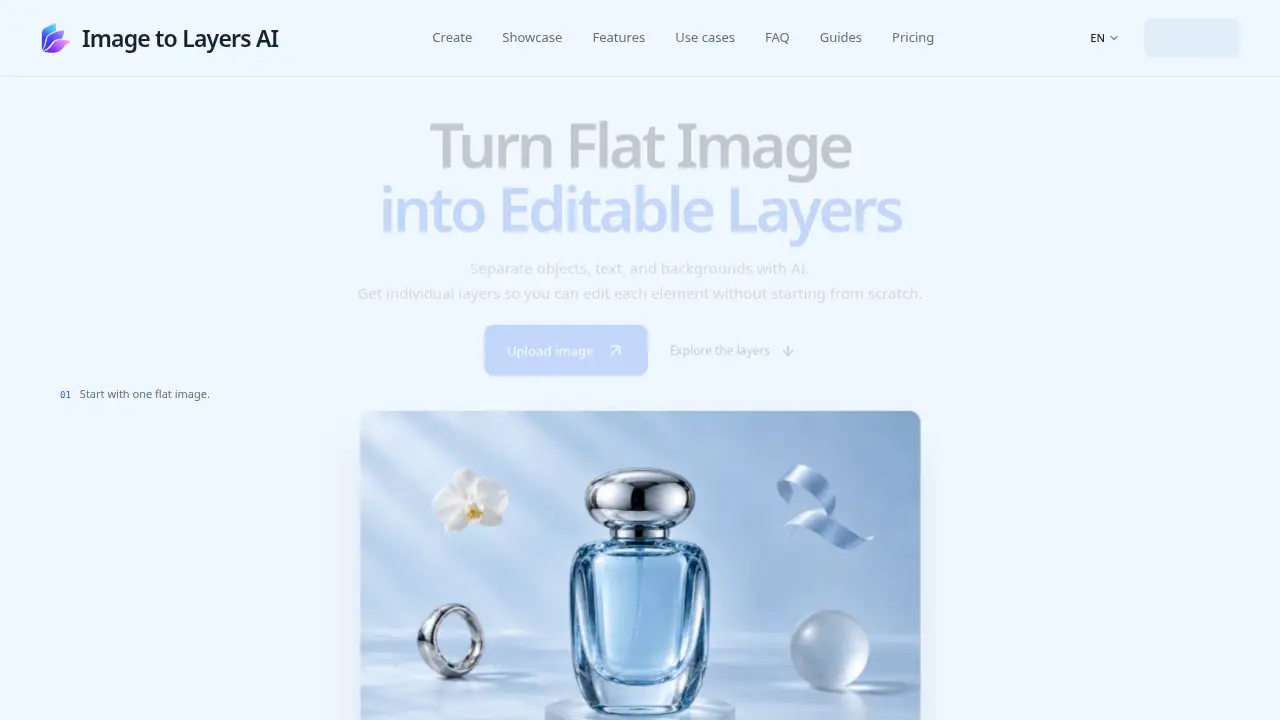
Image to Layers is an AI image layering tool that turns a flat image into separate, editable PNG layers. It helps designers isolate objects, text, and backgrounds for faster edits. This review explains how Image to Layers works, what it offers, and where it fits in a design workflow.
What is Image to Layers?
Image to Layers is an online tool designed to convert image to layers with AI. Instead of manually tracing every object, users upload a flat image and let the platform perform AI layer separation. The result is a background layer plus independent PNG elements that can be hidden, reordered, renamed, and moved. This image layering tool is useful when a single picture needs to become a flexible design asset, such as a product shot that needs a new background or a campaign visual that needs new text placement.
The main problem Image to Layers solves is the gap between a finished image and an editable composition. A standard cutout only separates a subject from its background. Image to Layers aims to separate image into layers, including multiple objects and a reconstructed background, so users can rebuild a scene without starting from scratch. It is suitable for designers, marketers, e-commerce sellers, and content creators who need transparent PNG layers for further editing. Because the output is raster PNG rather than editable text or vector objects, users should still inspect details and expect some AI interpretation around overlapping areas.
Key Features of Image to Layers
AI Layer Separation
Image to Layers uses AI layer separation to identify objects, text areas, and backgrounds in a flat image. It then returns a set of independent PNG layers for review and editing.
Individual PNG Assets
The tool outputs transparent PNG layers for each separated element, along with a background layer. This makes it easier to move assets into other design tools or use them in new compositions.
Background Reconstruction
Image to Layers creates a separate background layer and may reconstruct covered areas behind the main subject. Users can inspect this background before using it in a final layout.
Layer Editing Controls
Users can hide, reorder, rename, and move individual layers inside the Image to Layers workspace. These simple controls help users test a new composition without leaving the browser.
Organized Downloads
Image to Layers can download all layers in one ZIP file, including hidden layers and a manifest describing the composition. Users can also export only the visible composition as a single image.
Flexible Image Input
Image to Layers accepts JPEG, PNG, and WebP files up to 30 MB, with a pixel range of 262,144 to 36,000,000 and an aspect ratio between 1:16 and 16:1. The model typically returns a background plus separate elements, up to 17 layers total.
Use Cases for Image to Layers
Product Imagery
E-commerce sellers can use Image to Layers to separate a product from its original setting and place it on a new background. This supports faster product layout changes without a full reshoot.
Campaign and Social Content
Marketers can convert image to layers for campaign variations, social posts, and ad adaptations. Separate elements make it easier to test different placements while keeping the original visual style.
Illustration and Collage
Illustrators and collage creators can separate image into layers to reorganize visual elements and find new compositions. The tool is best suited to clear images with distinct objects rather than very complex scenes.
Motion Preparation
Animators and motion designers can prepare individual PNG layers for layered animation. Image to Layers does not create animation, but it can produce separate assets that are easier to animate later.
How to Use Image to Layers
- Upload a supported image to the Image to Layers workspace. Use a JPEG, PNG, or WebP file that meets the size and pixel requirements.
- Let the AI perform AI layer separation. The page shows the task state while the model processes the image.
- Review the returned background and independent PNG layers. Hide, reorder, rename, or move elements to test a new composition.
- Download transparent PNG layers, download all layers as a ZIP, or export the visible composition.
- Expect 10 credits per delivered layer, including the background. Editing and downloads are free once the layers are generated.
Target Audience for Image to Layers
- Graphic designers who need quick layer separation for layouts and composites
- E-commerce sellers who want to change product backgrounds and create variations
- Marketing teams producing campaign and social media visuals
- Illustrators and collage artists exploring new arrangements of existing elements
- Motion designers preparing PNG assets for layered animation
- Hobbyists and students learning how AI image layering tools fit into design workflows
Is Image to Layers Free?
Image to Layers does not list a free plan in the reference information. Paid plans start at $19.90 per month and use a credit system. Each delivered layer costs 10 credits, including the background, while editing and downloads are free.
| Plan | Price | Features |
|---|---|---|
| Starter | $19.90/month | 1,500 credits per month; 10 credits per layer; originals and layers saved for 30 days; cancel any time |
| Creator | $39.90/month | 3,500 credits per month; 10 credits per layer; originals and layers saved for 30 days; cancel any time |
| Studio | $79.90/month | 8,000 credits per month; 10 credits per layer; originals and layers saved for 30 days; cancel any time |
Monthly credits expire at the end of the billing period and do not roll over. Credit packs last 12 calendar months, and the earliest-expiring credits are used first.
Image to Layers's Pros and Cons
| Aspect | Pros | Cons |
|---|---|---|
| Pricing | Clear credit-based pricing with free editing and downloads | No free plan listed; monthly credits do not roll over |
| Features | AI layer separation, background reconstruction, and independent PNG layers | Output layers are raster PNG, not editable text or vector objects |
| Workflow | Simple browser-based steps: upload, separate, edit, download | Scaling, rotation, and PSD export are not included in the current version |
| Output | Organized ZIP download and transparent PNG layers | Results may differ from the original, especially around overlapping objects and fine edges |
| Use cases | Useful for product imagery, campaigns, collages, and motion preparation | Best suited to clear compositions with distinct objects |
Frequently Asked Questions about Image to Layers
What does Image to Layers do?
Image to Layers is an online image layering tool that uses AI to separate a flat image into a background and independent PNG elements. Users can hide, reorder, move, and download the layers.
Which image files can I upload to Image to Layers?
Image to Layers accepts JPEG, PNG, and WebP files up to 30 MB. Images must contain 262,144 to 36,000,000 pixels and use an aspect ratio between 1:16 and 16:1.
How many layers will I get from Image to Layers?
The model decides the layer count based on the image and any optional instructions. It typically returns a background and separate elements, with up to 17 layers total, but a specific layer count is not guaranteed.
Can I edit text or resize individual elements in Image to Layers?
The current version supports visibility, stacking order, renaming, and movement. Layers are raster PNG images, not editable text or vector objects, and scaling, rotation, and PSD export are not included.
Is Image to Layers free?
No free plan is listed. Image to Layers uses paid monthly plans with credits, and each delivered layer costs 10 credits, including the background. Editing and downloads are free after generation.
Will the output match my original image exactly?
AI may reconstruct hidden areas and reinterpret details, so results can differ from the original, especially around overlapping objects, text, and fine edges. Users can compare views before downloading.
Image to Layers Tags
Image to Layers, Image to Layers AI, AI layer separation, convert image to layers, separate image into layers, image layering tool, transparent PNG layers, background separation, editable layers, AI image editor, layer extraction, PNG layer export