Introduction
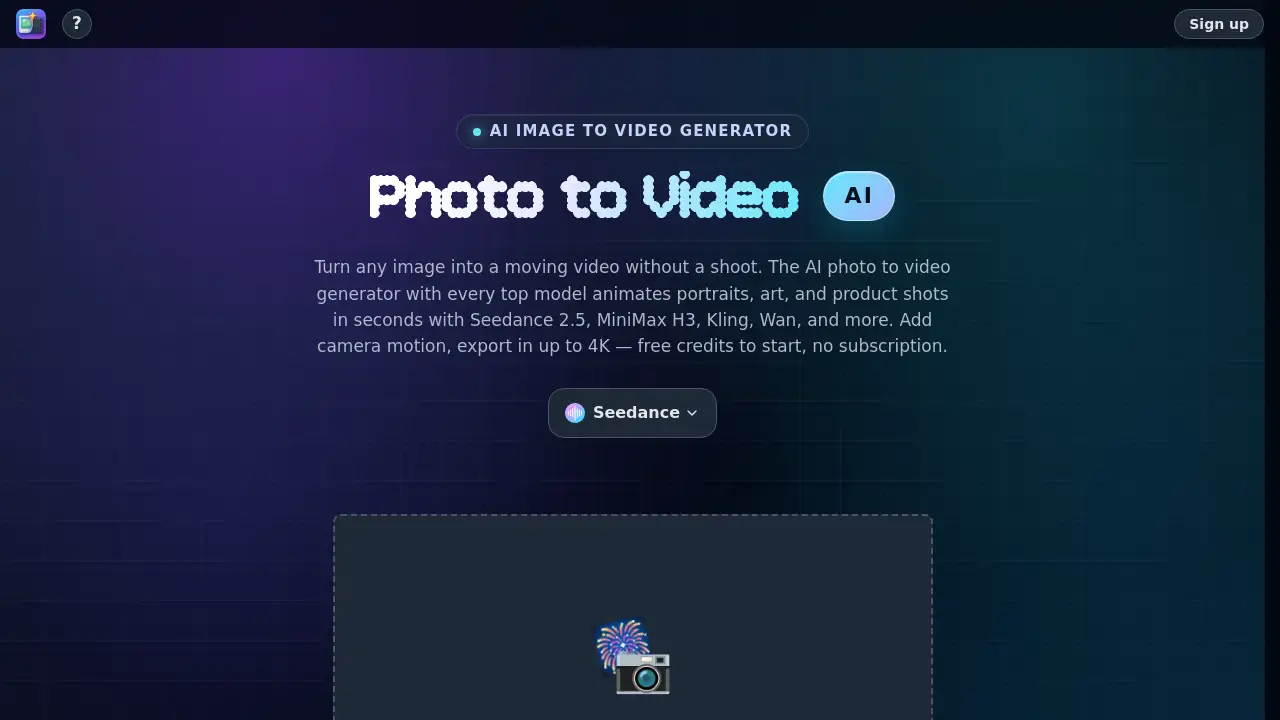
Photo to Video AI is an AI image to video generator that turns a still photo into video with AI in seconds. It combines top video models, including Seedance 2.5, MiniMax H3, Kling, and Wan, inside one online tool. Users can start with free credits and only pay when they need more, with no subscription required. The main goal is simple: upload one image, add motion, and export a ready-to-share moving video.
What is Photo to Video?
Photo to Video AI is an online creation service for anyone who needs moving video but does not want to arrange a photo shoot or learn a complex editor. According to the homepage, a single image can be turned into natural motion while the subject remains sharp and the scene feels alive. The product works with portraits, products, art, old photos, backgrounds, and more.
The service is marketed as an AI image to video generator with several leading video models available in one place. Instead of moving between different websites, users can switch models, compare outputs, and select the result that best fits the original image. This makes it useful for people who regularly create short social clips, product showcases, or marketing material from still images.
Key Features of Photo to Video
The key features of Photo to Video AI focus on motion quality, model selection, and output control. The platform lists image-to-video tools for portraits, products, background scenes, and camera movement.
Multi-Model AI Video Generation
Photo to Video AI gives users access to a wide list of AI video models. The homepage mentions Seedance, Wan, Seedance 2, MiniMax H3, Kling, Vidu, Hailuo, Happy Horse, Agnes, LTX 2.5, Imagine, Veo, and Sora 2. This model choice helps users generate different motion styles from the same photo.
AI Photo Animator
The AI photo animator turns a still photo into a moving image. The service claims the main subject stays clear while natural motion appears in the background or in details such as hair, clothing, and lighting.
AI Portrait Animator
With the AI portrait animator, faces can blink, smile, turn, or make small lifelike movements. Old photos and headshots can be brought back to life without using video footage. This feature is particularly useful for portrait photographers and family photo projects.
AI 360 Spin from Image
Photo to Video AI can generate a rotating view of an object from one photo. The description says the result is a clean loop where every angle is shown. This is designed for e-commerce listings, product pages, and online showcases.
AI Lifestyle Scene from Photo
A still photo can be placed into a moving environment such as a room, desk, or street. The homepage says the lighting and perspective are matched to the original image. This makes it easier to create short lifestyle videos without filming a new scene.
AI Background Animator
This feature animates or swaps the backdrop behind a subject. Skies, water, streets, and rooms can be moved while the edges around the main subject stay clean. It is useful when the original background is static but the video needs more energy.
Camera Motion and 4K Export
Photo to Video AI supports camera movement and export up to 4K. Users can add motion to an otherwise static photo and then export a final clip from the same workflow. The platform also mentions restyling and upscaling capabilities, all without timeline editing.
Use Cases for Photo to Video
Photo to Video AI can be useful for anyone who works with still images and short video content.
Portrait Clips and Social Media Content
Creators can turn a headshot or lifestyle photo into a short clip for stories, reels, or video ads. The AI portrait animator adds facial movement, while the background animator keeps the scene visually rich.
Product Showcases and Retail Listings
Using the AI 360 spin feature, sellers can create product videos that rotate on a clean loop. This gives online shoppers a more complete view of the item without requiring a video shoot or turntable.
Creative Effects and Background Replacement
Marketers and designers can animate a photo, replace a boring background, or place a subject into a moving setting. This use case fits advertising, brand content, and visual storytelling.
How to Use Photo to Video
Using Photo to Video AI follows a simple image-to-video workflow. No editing timeline is needed.
- Choose a photo or image that you want to animate.
- Select an AI video model from the available list, such as Seedance 2.5, MiniMax H3, Kling, or Wan.
- Add optional motion directions or camera movement if needed.
- Generate the video and preview the result.
- Export the final video in the preferred quality, up to 4K.
Target Audience for Photo to Video
- Social media creators and influencers
- E-commerce sellers and small business owners
- Photographers and portrait studios
- Marketing teams and creative agencies
- Hobbyists who want to animate personal photos
- Anyone producing short video content from still images
Is Photo to Video Free?
Photo to Video AI provides free credits to start, and the homepage clearly says there is no subscription. After the initial credit is used, the service appears to work on a pay-per-video basis. Exact credit prices are not listed in the homepage overview, so users can check the official website for current payment details.
| Plan | Price | Features |
|---|---|---|
| Free credits | $0 | Try the generator without a recurring charge |
| Pay-per-video | See official site | Access to multiple AI video models, up to 4K export, and model switching |
Photo to Video's Pros and Cons
| Aspect | Pros | Cons |
|---|---|---|
| Pricing | Free credits and no subscription | Exact per-video cost is not shown on the homepage |
| Model selection | Multiple leading AI video models in one place | Users may need to compare models to find the best style |
| Workflow | Simple image-to-video workflow with no timeline editing | Limited control for users who want frame-level video editing |
Frequently Asked Questions about Photo to Video
What is Photo to Video AI used for?
Photo to Video AI is used to animate still photos, create product spins, bring portraits to life, change backgrounds, and generate short video content. The service works from one single image instead of recorded footage.
Does Photo to Video AI require a subscription?
No. The product page states that there is no subscription and that free credits are available to start. Users can pay for videos as needed after using those credits.
Which AI video models are available in Photo to Video AI?
The homepage lists Seedance, Wan, Seedance 2, MiniMax H3, Kling, Vidu, Hailuo, Happy Horse, Agnes, LTX 2.5, Imagine, Veo, and Sora 2. The exact list may change over time.
Can Photo to Video AI animate a portrait?
Yes. The AI portrait animator is designed to make faces blink, smile, and turn. The homepage also mentions that old photos and headshots can become moving videos with lifelike expressions.
Do I need video editing skills to use Photo to Video?
No. The tool is designed for image-to-video generation, not traditional timeline editing. Users can upload a photo, choose a model, generate motion, and export the final result.
What export quality does Photo to Video support?
The service supports export up to 4K. Users can add camera motion and export the final clip ready for sharing.
Photo to Video Tags
Photo to Video AI, AI image to video generator, image to video AI, photo to video generator, AI photo animator, AI portrait animator, AI 360 spin, background animator AI, product video AI, no subscription video generator, 4K AI video, Seedance 2.5 model