Introduction
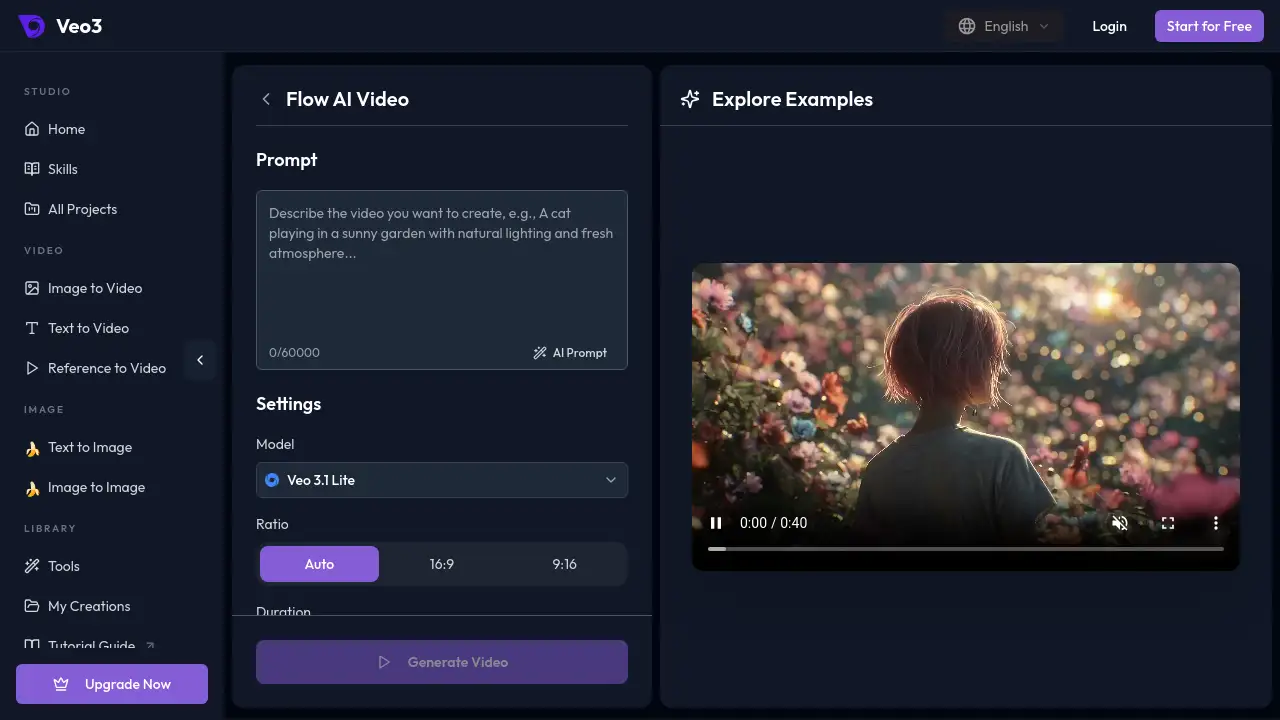
The Flow AI video generator from Veo3 turns a written prompt into a short clip with sound, using the Veo 3.1 model inside a plain browser workspace. It is built for people who want text to video results with native audio, without opening a Google Flow project or paying for a Google AI plan.
What is Veo3?
Veo3 is an independent AI video platform, and its Flow AI page is a prompt-to-video tool built on the Veo 3.1 model family. A user types a description of a scene, and the system generates a short clip with matching sound. The platform states clearly that it is not Google Flow and is not affiliated with Google.
The tool addresses a practical access problem. Google's Flow AI app also runs on Veo 3.1, but Google's help center limits it to supported countries and eligible Google AI plans. This Flow AI video generator works from a browser with its own account and credit balance, so access does not depend on Google's subscription tiers or country list.
It suits creators who want fast single-shot results rather than a full filmmaking project. It matters because it lowers the entry point for testing ideas on a paid model family without committing to a monthly Google plan. The same account also reaches other models such as Seedance 2.5, Kling 3.0 and Sora 2, which makes side-by-side comparison easier.
Key Features of Veo3
Veo 3.1 Text to Video from One Prompt
Describe the subject, action, setting and camera move in one or two sentences, then generate a clip with Veo 3.1. The workspace is designed for quick single-shot output rather than multi-scene editing.
Native Audio Built Into the Generation
Veo 3.1 creates sound alongside the picture, so dialogue, footsteps, rain or crowd noise can be written into the prompt. This removes a separate audio pass for simple concept clips.
Model, Aspect Ratio and Resolution Control
Choose a Veo 3.1 model, set widescreen, vertical or square framing, and pick a resolution up to 4K where the plan allows. The credit cost updates before the Generate button is pressed.
No Google AI Subscription Required
The Flow AI video generator runs on its own accounts and credits, so a Google AI Plus, Pro or Ultra plan is not needed. Failed generations are refunded to the balance automatically.
Multiple Models in the Same Account
Beyond Veo 3.1, the same account can reach models like Seedance 2.5, Kling 3.0 and Sora 2. This gives users room to compare visual styles without signing up for several separate tools.
Take History and Re-downloads
Every generation is stored in a history list, so a preferred take can be reviewed and downloaded later. Adjusting one prompt detail and regenerating is the intended workflow.
Use Cases for Veo3
Testing a Flow AI Idea Fast
Turn a one-line concept into a short shot with sound, then refine a single detail of the prompt until the moment lands. This is useful before investing time in a longer project.
Social Clips in Vertical or Square Formats
Pick a 9:16 or 1:1 ratio and generate a clip sized for short-form feeds. Because audio is generated with the video, the take can move into a rough cut quickly.
Scenes That Need Dialogue or Ambience
Write spoken lines or background sound into the prompt and let Veo 3.1 produce picture and audio together. Short narrative beats and mood shots become faster to test.
Storyboards and Pitch Previews
Directors and marketers can show a moving version of a scene instead of a written description. The Flow AI video generator keeps each take for comparison during review.
Image to Video Starting Points
The Flow AI page is text to video, while a separate image to video tool on the same site uses a photo as the first frame. That helps when a storyboard already exists as a still.
How to Use Veo3
- Write a Flow-style prompt. Name the subject, the action, the setting, the camera move and the sound you expect to hear in one or two specific sentences.
- Choose a model and format. Select a Veo 3.1 model, an aspect ratio and a resolution, then review the credit estimate shown under the prompt.
- Generate the clip. Press Generate and wait for the text to video result to render with its soundtrack.
- Review and refine. Watch the full clip with sound and change one prompt detail if the shot needs adjustment.
- Download from history. Open the take you prefer in the history list and download it.
Target Audience for Veo3
- Content creators producing short-form social video
- Marketers and small teams that need quick concept clips
- Filmmakers and animators building storyboards or pitch previews
- Prompt writers who want to test Veo 3.1 without a Google plan
- Hobbyists exploring AI video generation for the first time
Is Veo3 Free?
The Flow AI page does not publish a full price list, but it does describe how payment works. New accounts receive starter credits, and no Google subscription is required. Generation runs on a single Veo3 credit balance, the credit cost appears before a prompt is submitted, and failed generations are refunded automatically. Users who need exact pack sizes or subscription options should check the official pricing page on veo3ai.io, since rates for this Flow AI video generator can change.
Veo3's Pros and Cons
| Aspect | Pros | Cons |
|---|---|---|
| Access | Works in a browser without a Google AI plan or country restriction | Depends on the platform's own credit balance |
| Features | Veo 3.1 text to video with native audio and up to 4K | Single-shot focus, no Scenebuilder-style project tools |
| Cost control | Credit estimate shown before generating; failed runs refunded | Full pricing details are not listed on the Flow AI page |
| Model choice | Several models in one account, including Seedance 2.5 and Sora 2 | Users must learn which model fits a given prompt |
Frequently Asked Questions about Veo3
What is Flow AI, and is this the same as Google Flow?
Flow is Google's AI filmmaking app built on Veo 3.1. Veo3 is an independent tool that uses the same model family for text to video and states that it is not Google Flow and is not affiliated with Google.
Do I need a Google AI subscription to use this Flow AI video generator?
No. The platform uses its own accounts and credits, so a Google AI Plus, Pro or Ultra plan is not required, and Google's supported-country list does not apply.
Does the tool generate sound as well as video?
Yes. Veo 3.1 produces native audio with the picture, so dialogue, footsteps or rain described in the prompt are created during generation rather than added in a later edit.
Can I turn an image into a video?
The Flow AI page handles text to video only. A separate image to video tool on the same site lets Veo 3.1 use a photo as the first frame.
What happens if a generation fails?
Credits return to the balance automatically, so a failed run does not cost anything.
What makes a good prompt for Veo 3.1?
Name the subject, the action, the setting, the camera move and the sound. For example: a barista pours latte art in a sunlit café, slow push-in, soft chatter and the hiss of an espresso machine.
Veo3 Tags
Flow AI video generator, Veo 3.1, Veo 3.1 text to video, Google Flow AI, AI video generator with audio, native audio video generation, prompt to video, 4K AI video, text to video online, Flow AI without Google subscription, AI video generator browser, image to video tool