Introduction
Presentation to Video turns slides into narrated MP4 videos.
What is Presentation to Video?
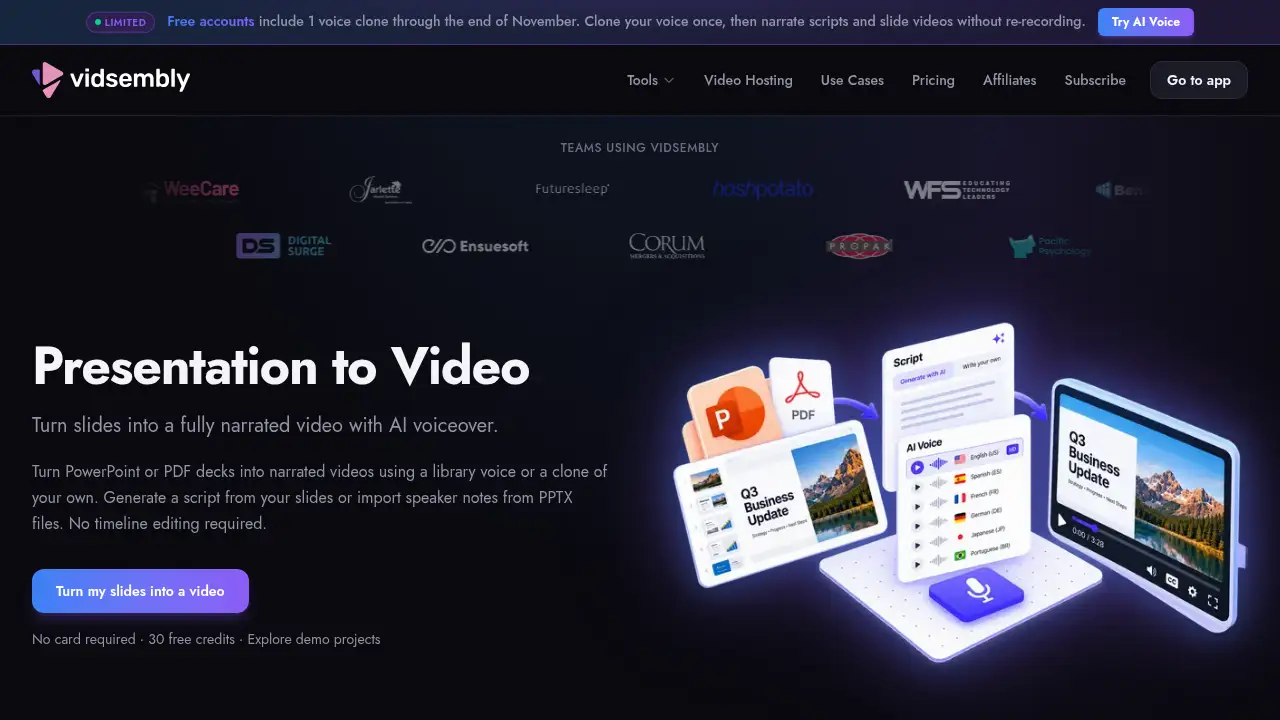
Presentation to Video is a web-based presentation to video tool from Vidsembly. It solves a common content problem: a team already has a slide deck, but needs a watchable video for training, sales follow-up, or online learning. Instead of recording a screen and microphone, users upload a PPTX, PPT, or PDF file, add or generate a script, choose an AI voiceover, and export an MP4. The tool is useful for people who want PowerPoint to video or PDF to video output without timeline editing. A presentation to video workflow can save time because the deck is the main input. It also supports speaker notes import, AI script generation, voice clones, and multiple output languages. The result is a narrated video that can be shared with learners, clients, or internal teams. Because the process is browser-based, the presentation to video tool fits teams that need repeatable videos from existing slides.
Key Features of Presentation to Video
PPTX, PPT, and PDF Upload
Upload existing decks and convert PowerPoint to video or PDF to video without rebuilding slides. The presentation to video tool accepts common slide formats.
AI Script Generation and Speaker Notes Import
Generate a narration script from slides or import speaker notes from PPTX files. This makes the presentation to video process faster for teams with detailed slide notes.
AI Voiceover and Voice Clones
Choose a standard or premium AI voiceover, or use a voice clone where the plan allows. The narrated video can use a consistent voice across a presentation to video project.
Automatic Script Translation
Translate narration and script text into 12 output languages, including English, Spanish, Chinese, and Japanese. This helps create a presentation to video for multilingual audiences.
HD MP4 Export and Re-rendering
Export a shareable MP4, with 720p/1080p re-render options on Pro and 4K re-render on Elite. Free exports may include a watermark, so users can test the presentation to video workflow before upgrading.
Editable Script and Regeneration
Review, edit, and regenerate the script before export. Users can refine the presentation to video output without timeline editing.
Use Cases for Presentation to Video
Sales and Enablement
Turn pitch decks into async follow-ups with a consistent AI voiceover. A presentation to video can be sent after demos instead of scheduling another call.
HR and Training
Convert policy PDFs and onboarding decks into short narrated videos. This presentation to video use case helps people finish required training modules.
Teachers and L&D
Reuse lesson slides as narrated videos for flipped classrooms, absences, or LMS modules. Teachers can create a presentation to video without recording a live lecture.
Founders and Consultants
Share investor updates and client walkthroughs without joining another call. A presentation to video keeps the message clear and repeatable.
How to Use Presentation to Video
- Upload a PPTX, PPT, or PDF file to Presentation to Video in Vidsembly.
- Add a script by importing speaker notes, generating narration from slides, or pasting custom text.
- Choose an AI voiceover or a voice clone, and select the output language.
- Preview the script and voice, then edit or regenerate if needed.
- Export the presentation to video as an MP4; paid plans add higher-resolution re-renders and no watermark.
Target Audience for Presentation to Video
- Sales and enablement teams
- HR and training teams
- Teachers and learning and development teams
- Founders and consultants
- Course creators and online educators
- Anyone who needs PowerPoint to video or PDF to video output from existing slides
Is Presentation to Video Free?
Presentation to Video has a free option and paid plans. The free plan includes 30 one-time credits and watermarked downloads. A separate free try lets users test up to 3 projects per day without an account, with watermarked MP4, up to 15 slides, and files deleted after 24 hours. Pro and Elite pricing is not listed in the provided information; check the official Vidsembly pricing page for current prices.
| Plan | Price | Features |
|---|---|---|
| Free | $0 | 30 one-time credits; PPTX, PPT, PDF upload; standard library AI voices; watermarked downloads |
| Pro | Not listed | 300 credits/month; no video watermark; 720p and 1080p re-render options; premium voices; 3 voice clones |
| Elite | Not listed | 1,200 credits/month; everything in Pro; 5 voice clones; 4K re-render export |
Presentation to Video's Pros and Cons
| Aspect | Pros | Cons |
|---|---|---|
| Pricing | Free credits and no-card trial available | Free exports are watermarked; Pro and Elite prices are not listed in the reference |
| Features | Supports PPTX, PPT, PDF, AI voiceover, voice clones, and script translation | Advanced options such as 4K and more voice clones require higher plans |
| Workflow | No timeline editing; upload, script, voice, export | AI scripts and voiceovers may still need human review |
| Output | Shareable MP4 and multiple languages | Free try limits slides and deletes files after 24 hours |
Frequently Asked Questions about Presentation to Video
What files can I convert with Presentation to Video?
Presentation to Video accepts PPTX, PPT, and PDF files. PPTX uploads can also import speaker notes as a narration starting point, making PowerPoint to video workflows easier.
Do I need to record my own voice?
No. Users can choose a library AI voiceover or use a voice clone where the plan allows. A presentation to video can be exported without a live microphone or recording session.
Which languages does Presentation to Video support?
It supports 12 output languages for narration and script translation, including English, Spanish, Chinese, Hindi, German, Italian, Arabic, French, Dutch, Japanese, Korean, and Portuguese.
Can I try Presentation to Video for free?
Yes. The free plan includes 30 one-time credits, and a free try allows 3 projects per day without an account. Free exports are watermarked and may have slide limits.
What do I export from Presentation to Video?
Users export a shareable MP4. Free exports use original resolution and may include a watermark; Pro adds 720p/1080p re-render options, and Elite adds 4K re-render export.
Who should use Presentation to Video?
Presentation to Video suits trainers, teachers, sales enablement teams, HR teams, founders, and consultants who already have slides and need a narrated video.
Presentation to Video Tags
presentation to video, PowerPoint to video, PDF to video, AI voiceover, narrated video, slides to video, AI voice clone, MP4 export, speaker notes import, presentation video maker, PPT to MP4, training video tool