Introduction
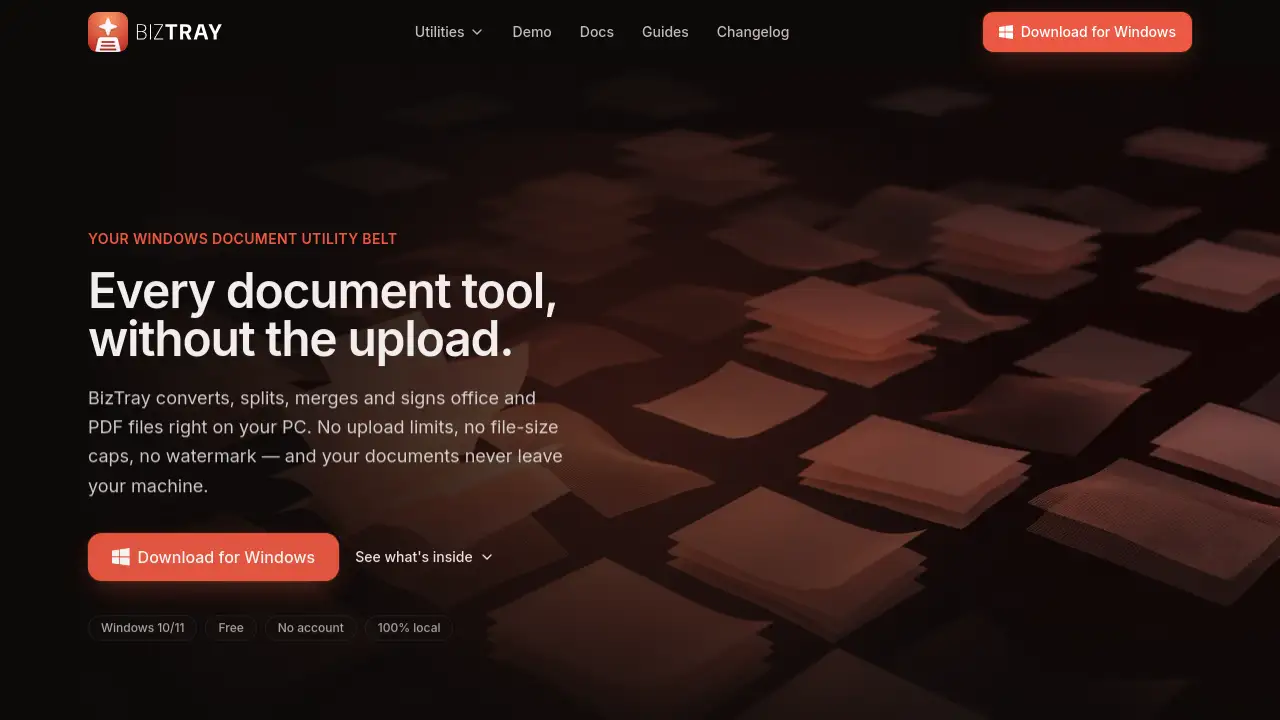
BizTray is a Windows document utility that converts, splits, merges, and signs PDFs and Office files directly on your PC. It works offline, in batch, with no upload limits or file size caps. For anyone looking for a free, private alternative to web converters, BizTray can handle document tasks without sending files to the cloud.
What is Biz Tray?
BizTray is a free Windows 10/11 app that puts a document utility belt in your system tray. Instead of opening a browser, uploading files, and waiting for a server, BizTray runs everything on your own computer. The tool converts Office documents and PDFs, splits large files, merges multiple documents, and adds signatures to pages. It also supports images-to-PDF and folder-based batch jobs.
The main problem BizTray solves is the privacy and limitation issue of online converters. Web services usually require uploads, impose daily quotas, or add watermarks. BizTray avoids all of that by keeping documents on the machine. It is suitable for anyone who wants fast, local document conversion without an account. Because it is a local document converter, there is no need to worry about a file being stored on someone else’s server.
Why does this matter? Sensitive contracts, bank statements, student coursework, and workplace files should stay private. BizTray processes those files locally. It also has no ceiling on file size, so massive PDFs or large Office projects are not blocked. The app is code-signed and checksum-verified, which helps users confirm they are running the official build. All of these details make BizTray a practical Windows document utility for privacy-conscious users.
Key Features of Biz Tray
Local Conversion Engine
BizTray performs every conversion on your PC. This means no upload queue and no waiting for a third-party server. As an offline document converter, it keeps files inside the machine while handling PDF and Office tasks.
Batch File Conversion
Drop a whole folder into BizTray, or set a rule to convert files automatically. Batch document processing saves time when users need to convert many invoices, reports, or images at once.
PDF Split and Merge
BizTray can break a large PDF into smaller pieces and combine multiple PDFs into one file. These local PDF tools work without a data connection, making them reliable even on slow networks.
Fill and Sign
Users can draw, type, or upload a signature mark and flatten it onto the page. The output is a visual signature, not a cryptographic PAdES signature. This is fine for everyday forms, but not for documents that legally require a certified eSignature.
Office and Image to PDF
The PDF paths run immediately after install. Word, Excel, and PowerPoint conversion may require a one-time document engine download of roughly 400 MB, which is then cached. Images can also be turned into PDF pages directly.
Watch Folders
BizTray can keep running in the tray and watch folders for new files. This is useful for people who need the same conversion rule repeated again and again. Users can turn off the bandwidth sharing from Settings; the tools pause while sharing is off.
Private by Design
No account is needed, and no files are uploaded. BizTray uses a transparent funding model: a share of spare internet bandwidth is used by a vetted partner called Massive. The app never touches user documents during that relay, and users can stop it or uninstall.
Use Cases for Biz Tray
University Coursework
Students often need to submit PDFs instead of Word files. BizTray can batch convert .docx files to PDF locally and avoid upload limits on campus networks.
Bank Statements
PDF statements from different months can be merged into a single file. Because BizTray works offline, financial documents never leave the computer.
Rental Agreements
Tenants and landlords can use Fill & Sign to add a signature image to a lease PDF. This creates a signed visual copy for quick review before a formal electronic signature tool is used.
Large Reports
Marketing teams often receive huge PDF decks. BizTray can split a PDF by selected pages or target range, keeping the useful parts ready for distribution.
How to Use Biz Tray
Using BizTray is straightforward. There is no web dashboard or setup wizard. The main steps are:
- Download the BizTray installer from the official website, and run it. It installs for the current user only. No admin prompt or reboot is required.
- Open BizTray from the system tray. The icon stays there and waits for a file drop.
- Pick a tool from the tray menu. Choose PDF conversion, Office conversion, split, merge, images-to-PDF, or Fill & Sign.
- Drop a document or folder into the tool, then choose the output target. The conversion starts immediately and runs on your PC.
- Locate the output file once the task is done. The first Office conversion may download the document engine automatically if it has not been cached yet.
Target Audience for Biz Tray
- Privacy-conscious users who do not want their documents uploaded.
- Windows 10/11 users, since BizTray is available only on x64 Windows.
- Students and educators converting or splitting PDFs and Office files.
- Professionals handling contracts, HR paperwork, and NDAs.
- Anyone who often works with very large PDFs and needs unlimited local processing.
- Batch-oriented users who prefer folder watches over manual repeated tasks.
- Freelancers and small business owners who want free document tools without ads.
Is Biz Tray Free?
BizTray is free forever. There is no trial timer, page limit, or watermark. The app is funded by a bandwidth-sharing program with Massive. During installation, users are told exactly how it works. Sharing spare internet bandwidth helps pay for development, and the optional sharing can be turned off in Settings. Turning it off pauses the tools because sharing is the trade that supports the app. Uninstalling BizTray ends everything completely.
No paid plans are mentioned on the official website. Based on the product information, the model is:
| Plan | Price | Features |
|---|---|---|
| Free | $0 | Seven focused tools, batch offline conversion, unlimited file sizes, no account, no ads, optional bandwidth sharing. |
Biz Tray's Pros and Cons
BizTray has clear strengths and a few honest limitations.
| Aspect | Pros | Cons |
|---|---|---|
| Privacy | Documents stay on your PC, no upload required | Bandwidth sharing runs in the background unless disabled |
| Pricing | Free with no watermarks or limits | Tools pause when bandwidth sharing is turned off |
| Format support | PDF, Word, Excel, PowerPoint, images-to-PDF | No OCR for scanned text-only PDFs; Mac/Linux not supported |
| Signing | Simple visual Fill & Sign for quick forms | Not a cryptographic PAdES eSignature |
| Installation | No admin prompt; installs for current user; code-signed | First Office conversion needs 400 MB engine download |
| Reliability | Checksum-verified official builds; no account needed | New product, so published reviews are not yet available |
Frequently Asked Questions about Biz Tray
Is BizTray really free?
Yes. BizTray is completely free to download and use. There is no subscription, no page limit, and no watermark. The app is supported through an optional bandwidth-sharing program, and the funding model is explained during installation.
Does BizTray upload my documents to the cloud?
No. BizTray is a local document converter. Files are processed on your Windows PC. The only extra download that can happen is the first Microsoft Office document engine, which is stored on your machine for later offline use.
Can I use BizTray on macOS or Linux?
No. BizTray currently supports Windows 10 and Windows 11 for x64 systems only. The official site says there is no macOS or Linux build in progress.
Does the Fill & Sign tool create a legal electronic signature?
No. The signature is a visual mark that is flattened onto the PDF page. It does not carry cryptographic proof of who signed or when, so it should not be used when a form specifically requires a PAdES eSignature.
Why does the first Office conversion download a large file?
BizTray is offline-first, but Word, Excel, and PowerPoint conversion paths need a document engine. The engine is roughly 400 MB and downloads once, then it is cached. PDF tools, images-to-PDF, and Fill & Sign work immediately after installation.
Does BizTray have OCR for scanned PDFs?
No. Image-only PDFs do not have a text layer, and this version does not include OCR. Converting a scan to text, Markdown, or HTML would come back empty. Rendering a scan to PNG or JPG works fine.
Biz Tray Tags
BizTray, Biz Tray, Windows document utility, local document converter, offline PDF tool, batch PDF conversion, PDF split and merge, Fill and Sign, Windows 10/11, free document software, private document toolkit, PDF tools for PC