Introduction
An AI photo editor edits images using simple text prompts.
What is ai photo editor?
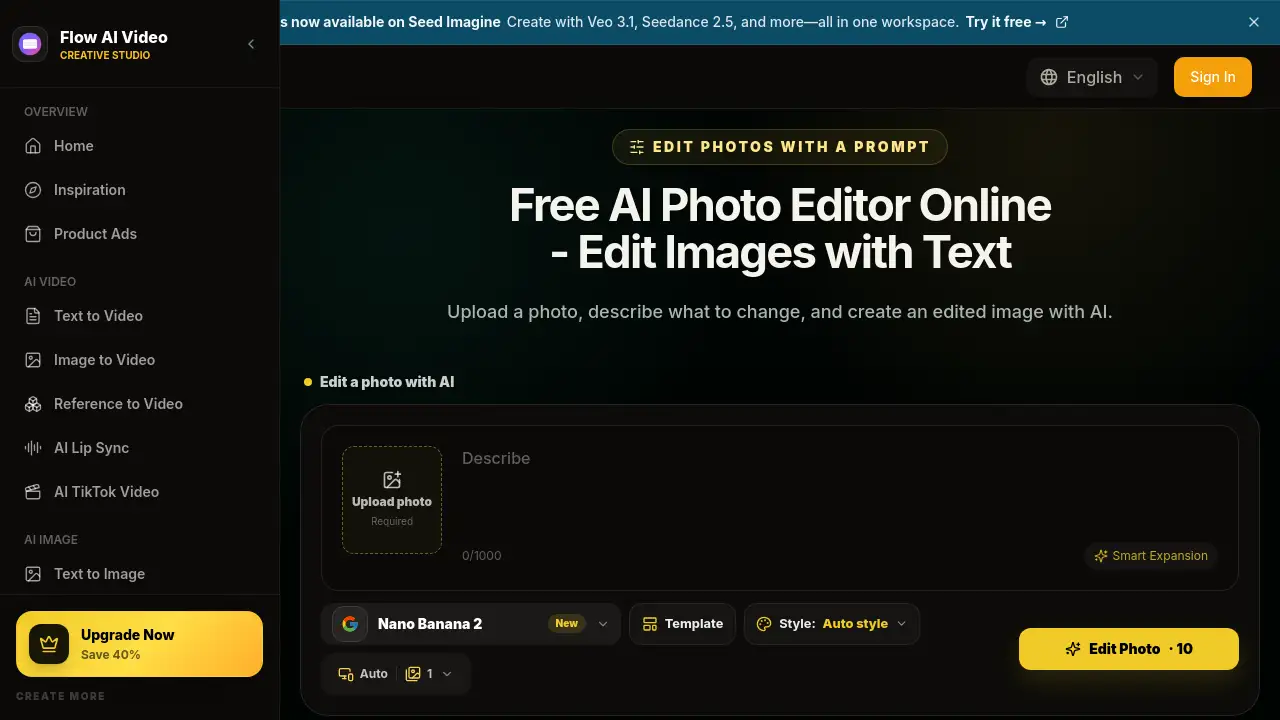
The ai photo editor is a browser-based tool from Flow AI Video that changes existing photos with artificial intelligence. Instead of learning masks, layers, or complicated tool panels, users upload an image and describe the desired result with natural-language text prompts. For example, someone can ask the tool to replace a background, remove an object, change an outfit, or relight a portrait.
This product solves a common problem: photo editing often feels technical and time-consuming. The ai photo editor lowers that barrier by letting the software understand what needs to change while keeping the original subject and composition in mind. It is suitable for content creators, small business owners, social media managers, and anyone who needs quick visual changes without a professional editing background.
The workflow is simple. Upload a photo, write an instruction, choose an AI image model, and review the output. This makes it easy to edit photos with AI for everything from product photos to portrait retouching. The tool supports JPG, PNG, and WEBP uploads, and it offers multiple AI image models so users can compare results inside one workspace. This AI photo editing approach is important because it turns vague creative requests into practical, editable images in seconds.
Key Features of ai photo editor
Natural-Language Photo Editing
Users can describe the edit in plain language. For example, "replace the background with a bright modern office" is enough to tell the tool what should happen. This feature makes AI photo editing approachable for beginners and still useful for professionals.
Multiple AI Image Models
The tool includes several AI image models in one workspace. This lets users compare prompt accuracy, realistic detail, and creative style without jumping between different websites.
Background Replacement and Object Removal
The ai photo editor can replace a photo background or remove an unwanted object. Users should clearly identify the object and mention what should appear in its place, such as rebuilding the missing floor texture naturally.
Reference Image Support
Users can upload the main photo and add more reference images when a subject, product, palette, or visual direction needs extra guidance. This is helpful for keeping brand colors or product shapes consistent.
Variations and Comparison
Users can generate multiple edited versions from the same instruction. Reviewing different directions helps refine the prompt before committing to a final image.
Upload and Format Controls
The editor accepts JPG, PNG, and WEBP files. Users can also select aspect ratio, style, output format, and number of results before starting a request.
Use Cases for ai photo editor
Change a Photo Background
A portrait taken in a plain room can be placed into a modern office, outdoor scene, or studio wall. The prompt should describe the new setting and ask to keep the person, pose, and lighting consistent.
Remove an Unwanted Object
Product photos and interior shots often contain stray items. The ai photo editor can remove an object and rebuild the background texture while preserving nearby details.
Relight a Portrait
Photographers and editors can adjust the mood of a photo by asking for soft golden-hour light or balanced skin tones. The original face and background composition remain intact when the prompt says so.
Restyle a Room or Outfit
The tool can restyle an interior with new furniture and colors, or change a person’s outfit. Users simply describe the new style and clearly state which elements should stay unchanged, such as face, hair, pose, or room geometry.
How to Use ai photo editor
- Upload a clear JPG, PNG, or WEBP photo where the subject and area to edit are easy to see.
- Write a photo editing prompt that describes what should change and what should stay fixed.
- Choose an AI image model, aspect ratio, style, and number of outputs.
- Generate the edited image, review the result, and refine the prompt one instruction at a time if needed.
This process gives users a straightforward way to edit photos with AI while keeping the original image as a guide for composition and subject detail.
Target Audience for ai photo editor
- Content creators and social media managers
- Small business owners and e-commerce sellers
- Photographers and portrait retouchers
- Marketing and advertising teams
- Interior designers and real estate professionals
- Anyone who needs quick visual edits without desktop software
Is ai photo editor Free?
Flow AI Video offers free credits so users can try the ai photo editor before committing to a paid plan. Paid plans start at a monthly rate and include credits for image editing, video generation, and additional AI tools.
| Plan | Price | Main Features |
|---|---|---|
| Basic | $19.90/month | 800 credits per month, up to 40 videos/month, AI image editor, no watermark |
| Pro | $39.90/month | 2,000 credits per month, up to 200 videos/month, all Basic features plus priority support |
| Enterprise | $99.90/month | 6,000 credits per month, up to 600 videos/month, commercial use license and priority queue |
Annual billing can save 50%, and subscriptions can be canceled at any time. The exact credit amount per edit is shown in the model selector before submission.
ai photo editor's Pros and Cons
| Aspect | Pros | Cons |
|---|---|---|
| Ease of Use | Natural-language editing removes the need for complex tools | Prompt quality can affect the final result |
| Editing Power | Supports backgrounds, objects, outfits, lighting, and scene restyling | Generated details can vary from the original image |
| Model Options | Multiple AI models in one workspace | Beginners may find model selection confusing |
| Pricing | Free credits and transparent monthly plans | Paid plans may be more than casual users need |
Frequently Asked Questions about ai photo editor
What is an AI photo editor?
An AI photo editor changes an existing image using artificial intelligence. Users upload a photo and describe the desired edit, such as replacing a background, removing an object, changing clothing, adjusting lighting, or restyling a scene.
How do I edit photos with AI?
Upload a JPG, PNG, or WEBP photo, write a clear editing prompt, choose an AI image model and output settings, then click Edit Photo. Review the result and refine the instruction if necessary.
How should I write an AI photo editing prompt?
State the change first, then tell the model what must stay fixed. A useful pattern is: “Replace the background with a bright kitchen; keep the person, pose, clothing, and camera angle unchanged.”
Can AI replace the background of a photo?
Yes. Describe the new setting and include any lighting, color, or perspective requirements. Mention the subject and edge details that should remain unchanged.
Will AI keep the original person or product unchanged?
The uploaded photo guides the result, but generated details can still vary. Precise instructions, clear source images, restrained edits, and explicit preservation language can reduce unwanted changes.
Which photo formats can I upload?
The editor accepts JPG, PNG, and WEBP files. The current file-size guidance appears in the editor before upload.
ai photo editor Tags
ai photo editor, online ai photo editor, edit photos with AI, AI photo editing, text prompt photo editor, replace photo background, remove object from photo, AI image editor, photo editing with AI, Flow AI Video