Introduction
Kling 4.0 is a browser-based AI video generator for turning prompts or images into short video shots. It helps creators test product ads, character scenes, and camera moves before full production.
What is Kling 4.0?
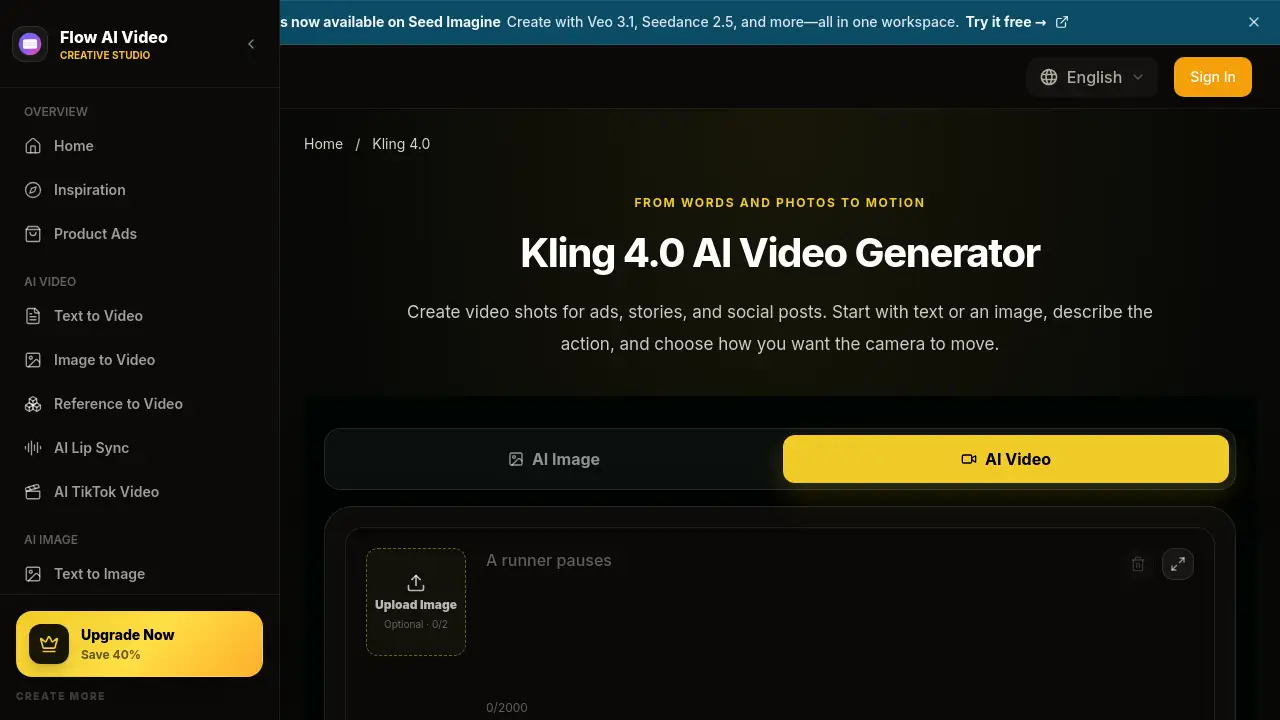
Kling 4.0 is an AI video generator available through Flow AI Video. It lets users start with text or a reference image, describe an action, and generate a clip for ads, stories, or social posts. The tool is designed for previsualization: it turns an idea into motion so teams can review a shot concept before booking a shoot or editing a sequence.
Kling 4.0 supports text to video and image to video workflows, and it works in a browser without a separate video app. It is useful for ad designers, video directors, ecommerce sellers, and freelance editors who need quick visual references. Instead of explaining a scene only in words, users can generate a short clip and share it with collaborators. The product matters because it makes early video planning faster, clearer, and easier to discuss.
Key Features of Kling 4.0
Text to Video Generation
Kling 4.0 turns a written prompt into a short video clip. Users can describe a person, object, place, or action and generate a scene to review.
Image to Video and Reference Input
Kling 4.0 supports image to video creation with optional reference uploads. A photo can help explain the subject, look, or product that should appear in the clip.
Camera Move and Action Control
Users can add camera moves such as a slow pan, close-up, or follow shot. This helps Kling 4.0 create motion that matches the intended framing and pacing.
Model, Length, and Resolution Settings
Kling 4.0 includes output controls beside the model selector. Users can choose a video model, duration, and resolution when available, then review credits before generating.
Browser-Based Preview and Download
Kling 4.0 runs in a browser, so users can prepare and preview a shot on a laptop or phone. Finished clips can be downloaded for use in a video editor.
Creative Shot Ideas and Inspiration
The Kling 4.0 page provides examples for close-ups, wide views, and action shots. These references help users shape prompts and understand how framing affects a scene.
Use Cases for Kling 4.0
Product Video Ads
Kling 4.0 can create a product close-up, lifestyle shot, or reveal. Ad designers can compare scenes before building a full campaign.
Character Scenes
Kling 4.0 helps introduce a character with a glance, turn, or walk. Users can describe the expression and action they want to see.
Opening Shots and Establishing Views
Kling 4.0 can generate a city skyline, busy street, or wide landscape. These opening shots set the mood before the main story begins.
Extra Footage for Edits
Kling 4.0 can create a detail shot of an object or its surroundings. Freelance editors can place these clips between main scenes to change the pace.
Social Media Clips
Kling 4.0 can support short promotional videos for social posts. Ecommerce sellers can turn product photos into simple moving visuals for online ads.
How to Use Kling 4.0
- Open Kling 4.0 and choose a text to video or image to video start.
- Upload a reference image or enter a prompt describing the subject, object, or place.
- Add movement and camera details, such as a close-up, slow pan, or follow shot.
- Select the available video model, length, and resolution, then review the credit cost.
- Generate the clip, watch the result, and download it for your project if it fits.
- Revise the prompt and try again when the action, framing, or camera move needs changes.
Target Audience for Kling 4.0
- Ad designers
- Video directors
- Ecommerce sellers
- Freelance video editors
- Content creators
- Social media marketers
- Small production teams
Is Kling 4.0 Free?
Kling 4.0 can be tried through Flow AI Video. The site mentions free tools and a free try option, while video generation uses credits. Exact plan prices and credit costs are not listed in the reference content, so users should check the official pricing page at https://www.flowaivideo.org/pricing for current details. Available durations and resolutions vary by model and are shown before generation.
| Plan | Price | Features |
|---|---|---|
| Free / Trial | $0 to start | Access to free tools and limited generation; credits may apply |
| Paid Plans | Varies | Upgrade options, credit packs, and higher usage; see official pricing page |
Kling 4.0's Pros and Cons
| Aspect | Pros | Cons |
|---|---|---|
| Pricing | Free entry and credit-based options | Credit costs can add up for frequent generation |
| Features | Text to video, image to video, camera prompts, browser access | Output quality depends on selected model and prompt clarity |
| Workflow | Quick preview and download for edits | Not a full replacement for final production |
| Usability | Simple step-by-step process | Prompt writing may need practice for focused results |
Frequently Asked Questions about Kling 4.0
Can I describe camera moves in Kling 4.0?
Yes. Users can include clear phrases such as a slow pan, a close-up, or a camera following the subject. The final result depends on the selected model and the rest of the prompt.
Do I need a reference image to use Kling 4.0?
No. A text-based start works without an image. A reference image can help when a photo explains the subject, product, or look more clearly.
Can I use Kling 4.0 clips in a longer video?
Yes. Users can download a Kling 4.0 result and bring it into a video editor. It can be arranged with other shots, titles, and music to build a longer sequence.
How can I get a more focused result in Kling 4.0?
Avoid asking for many actions at once. Choose the most important moment and describe the subject, movement, and framing around it.
Where do I choose video length and quality in Kling 4.0?
Use the output controls beside the model selector. Available durations and resolutions vary by model and are shown before generation.
How do I choose a video model in Kling 4.0?
Open the model selector and choose the model you want to use. Check its supported inputs and output settings, then review the credit cost before generating.
Kling 4.0 Tags
Kling 4.0, Kling 4.0 AI video generator, AI video generator, text to video, image to video, product video ads, character scenes, camera moves, Flow AI Video, AI video clips, video previsualization, short video generator