Introduction
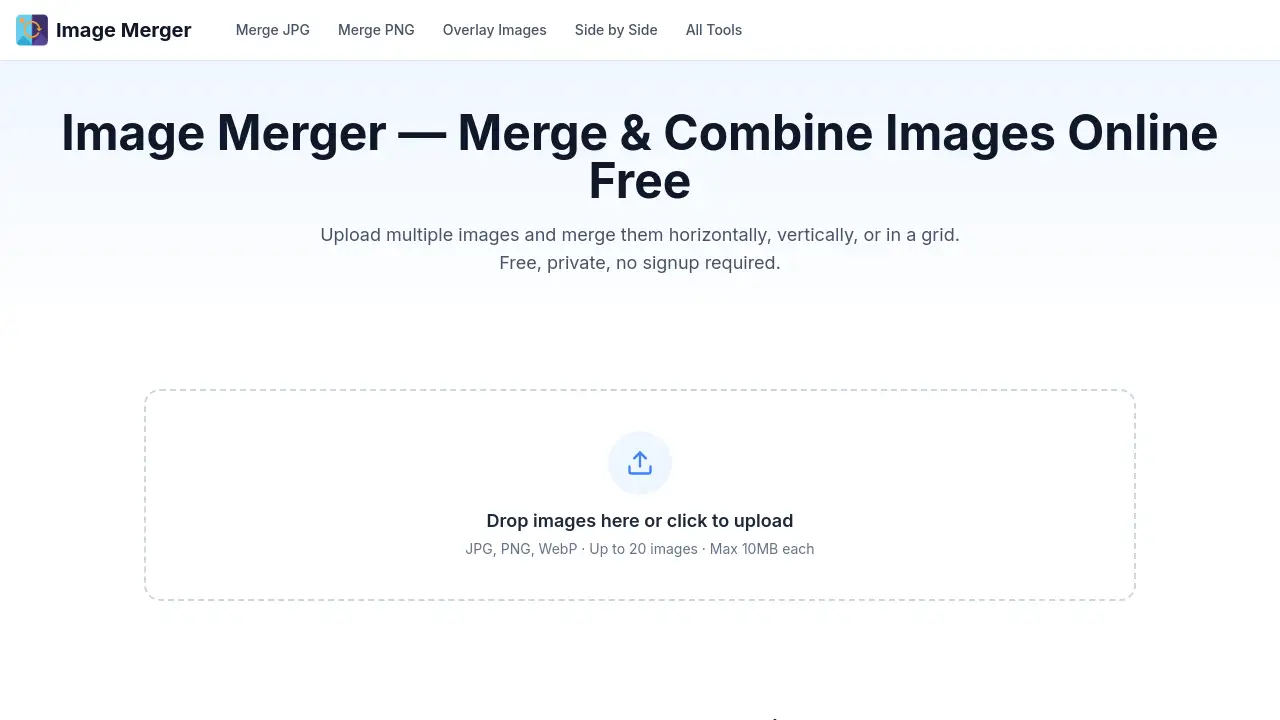
Image Merger is a free online tool for combining multiple photos into one single image.
What is Image Merger?
Image Merger is a web-based application designed to solve a common digital task: merging multiple images into one. This tool eliminates the need for complex desktop software like Photoshop, offering a streamlined, browser-based solution for anyone needing to combine photos. It caters to a wide audience, from social media users creating collages to professionals preparing reports with multiple screenshots. The importance of an online image merger lies in its accessibility, speed, and privacy, allowing users to stitch pictures together instantly without downloads, sign-ups, or compromising their data.
Key Features of Image Merger
Three Layout Modes
Users can choose between horizontal, vertical, or grid layouts to merge images side-by-side, stacked top-to-bottom, or in a structured collage.
Batch Merging Support
The tool allows you to combine photos in batches, supporting up to 20 images at once that can be easily reordered via drag-and-drop before the final merge.
Adjustable Spacing and Alignment
Fine-tune the gaps between merged pictures with a spacing slider (0-50 px) and select a background color for these spaces to create a polished final image.
Flexible Output Formats
Download the merged image as a high-quality PNG for lossless results or a compressed JPG for smaller file sizes, offering control over the final output.
100% Browser-Side Processing
All image processing occurs locally in your web browser, ensuring complete privacy as your photos never leave your device or get uploaded to a server.
No Signup or Watermarks
The service is entirely free to use with no account creation required, and downloaded images contain no watermarks, logos, or usage restrictions.
Use Cases for Image Merger
Social Media Collages
Create engaging posts for platforms like Instagram or Facebook by combining multiple photos into a single, attractive collage using the grid layout.
Before-and-After Comparisons
Effectively showcase transformations, edits, or progress by merging two photos side-by-side in a horizontal layout for clear visual contrast.
E-commerce Product Listings
Combine several product shots from different angles into one comprehensive image for marketplace listings, providing buyers with a better view.
Presentation and Report Visuals
Merge related screenshots, charts, or diagrams into a single, cohesive image for slideshows, documents, or bug reports to improve clarity and professionalism.
Creative Moodboards
Arrange inspiration images, color palettes, and textures in a grid layout to create digital moodboards for design projects, interior planning, or creative brainstorming.
How to Use Image Merger
Using this online photo merger is straightforward and requires only a few steps:
- Upload Images: Navigate to the Image Merger website and upload up to 20 images by dragging them into the browser window or using the file selector.
- Choose Layout: Select your preferred merging style: horizontal (side-by-side), vertical (stacked), or grid (rows and columns).
- Customize Settings: Adjust the spacing between images with the slider and choose a background color if gaps are added. Drag images to reorder them.
- Download Result: Click the download button to save the final merged image to your device in either PNG or JPG format.
Target Audience for Image Merger
- Social Media Managers and Content Creators needing quick collages and visual content.
- Online Sellers and E-commerce Store Owners creating product listing images.
- Students, Teachers, and Office Workers preparing presentations, reports, or study materials.
- Designers and Creative Professionals compiling moodboards and visual references.
- General Computer Users looking for a simple, no-fuss way to combine screenshots or personal photos.
Is Image Merger Free?
Yes. Image Merger is completely free to use. There are no premium plans, subscription fees, or hidden costs.
| Plan | Price | Key Features |
|---|---|---|
| Free | $0 | Merge up to 20 images, three layout modes, adjustable spacing, PNG/JPG output, no watermarks, no signup, browser-side processing. |
Image Merger's Pros and Cons
| Aspect | Pros | Cons |
|---|---|---|
| Cost & Accessibility | 100% free with no signup; accessible from any device with a web browser. | Requires an internet connection to access the website. |
| Ease of Use | Extremely simple, intuitive interface with no learning curve. | Lacks advanced editing features like cropping or resizing individual images before merging. |
| Privacy & Security | Superior privacy as all processing is done locally; images never leave your computer. | Processing very large batches of high-resolution images may depend on your local device's performance. |
| Features & Output | Offers versatile layouts and output format options for a free tool. | The 20-image limit per batch may be restrictive for some advanced collage projects. |
Frequently Asked Questions about Image Merger
How do I merge images online for free?
To merge images online, visit the Image Merger website, upload your photos, select a layout (horizontal, vertical, or grid), adjust any spacing preferences, and click download. The entire process happens in your browser for free.
What image formats does the Image Merger support?
The tool supports common formats including JPG, PNG, and WebP. You can mix these formats in a single merge operation and choose to download the final merged image as either a PNG or JPG.
Is there a limit to how many images I can combine?
Yes, you can combine photos in batches of up to 20 images at one time. For optimal performance, it is recommended that individual image file sizes be kept under 10 MB.
Are my images safe and private when using this online photo merger?
Absolutely. Image Merger uses client-side processing, meaning all work is done directly in your web browser. Your images are never uploaded to any external server, ensuring maximum privacy and safety.
Can I add space between the images when I merge them?
Yes. A spacing slider allows you to add gaps from 0 to 50 pixels between images. You can also select a custom background color to fill these gaps for a tailored look.
What is the difference between horizontal, vertical, and grid layout?
The horizontal layout places images side-by-side from left to right. The vertical layout stacks them from top to bottom. The grid layout automatically arranges multiple images into rows and columns to create a collage.
Image Merger Tags
online image merger, merge multiple images, combine photos, free photo merger, image combiner, merge two photos, collage maker, side by side photos, vertical image merge, grid layout, browser-based tool, no watermark, privacy-focused, JPG merger, PNG merger