Introduction
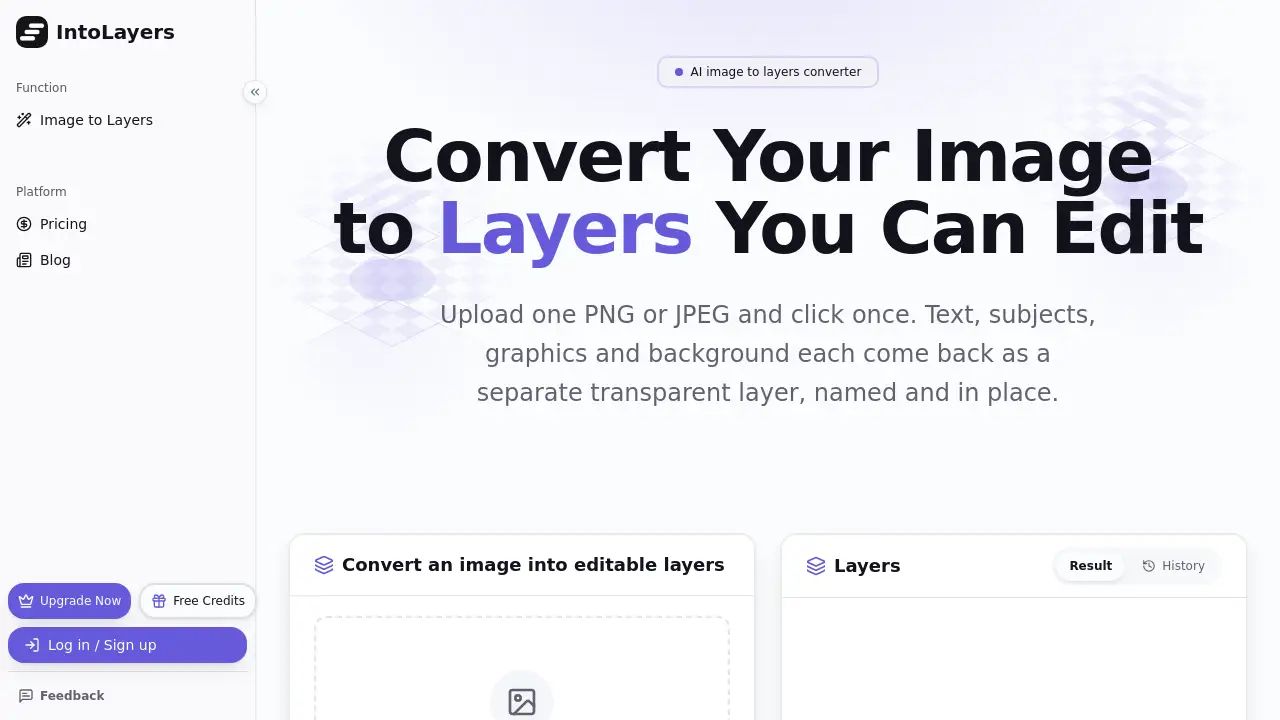
IntoLayers converts an image to layers you can edit. It takes one flat PNG or JPEG and returns separate transparent layers with names, positions, and stacking order. This image to layers workflow helps designers, marketers, and small business owners change one part of a finished graphic without rebuilding the whole design. Instead of masking every element by hand, users upload the image, click Convert, and download a layered PSD or individual PNG files.
What is IntoLayers?
IntoLayers is an image to layers converter designed for flat images that need editing. The process is often called image to layers: converting a single flattened picture into a rebuilt background plus separate editable elements. Text, subjects, graphics, and other parts come back as individual transparent PNG layers. The tool also exports a single layered PSD that opens in Photoshop, Photopea, Affinity Photo, and GIMP.
It solves a common problem: once a design is flattened, changing a headline, price, logo, or product position can mean recreating the file. IntoLayers automates the separation step so users can edit existing images faster. It suits AI image creators, marketers, small business owners, and designers who receive JPEGs or PNGs without source files.
Key Features of IntoLayers
Automatic Image to Layers Conversion
Upload one PNG or JPEG and click Convert. The model detects elements and returns each subject, text block, or graphic as a separate transparent layer.
Rebuilt Background Layer
The base layer keeps the image with separated elements removed and the gaps filled. This helps the background remain usable after extraction.
Named Layers with Position and Order
Each layer has a readable name and keeps its bounding box and stacking order. Reassembling the layers in order rebuilds the original design.
Layered PSD Export
IntoLayers exports the whole stack as a layered PSD. This file opens in common editors such as Photoshop, Photopea, Affinity Photo, and GIMP.
Individual Transparent PNGs
Every layer can be downloaded as its own transparent PNG in a ZIP. This supports flexible edits, compositing, and reuse across projects.
Small Element Enlargement
When an image is split into three or more layers, small elements are enlarged by how small they are in the image. IntoLayers reports a median of 2.17× in tests, which can keep small text and labels sharp. In 2-layer runs, small text may not return on its own layer and is not enlarged.
Use Cases for IntoLayers
Editing AI-Generated Images
AI images can be hard to edit when one word or element is wrong. An image to layers conversion lets users fix the text or move a subject without regenerating the entire picture.
Updating Approved Marketing Graphics
Campaign visuals are often approved before an offer changes. Marketers can convert the image to layers, swap the headline or price, and resize for another channel.
Recovering Designs Without Source Files
A flyer, menu board, or poster may only exist as a JPEG. IntoLayers helps users without design software experience change dates, prices, or contact details.
Assisting Designers with Client Files
Designers often receive flat images instead of working files. Converting a JPEG to layers reduces manual masking and gives a useful starting point for a new version.
How to Use IntoLayers
- Upload one PNG or JPEG to IntoLayers. Posters, screenshots, social graphics, product shots, and AI images are supported.
- Click Convert. The model separates text, subjects, graphics, and background elements into layers.
- Keep the default layer count or raise it when a finer split is needed.
- Review the layer stack. Toggle layers on and off, then download individual transparent PNGs or export the full stack as a layered PSD.
- Edit the PSD or PNGs in Photoshop, Photopea, Figma, or Affinity Photo.
Target Audience for IntoLayers
- AI image creators who need editable text and elements
- Marketers updating signed-off graphics
- Small business owners without source design files
- Freelance designers working with client JPEGs
- Ecommerce managers changing product placement
- Motion designers importing layered PSD files into animation tools
Is IntoLayers Free?
IntoLayers offers free access to split an image at 1K without signing up. Signing in lets users keep results in a library and use 1.5K and 2K sizes. Paid plans add higher output sizes and an Auto mode that lets the model decide the layer count. Exact pricing is not specified in the available product details, so users should check the official IntoLayers pricing page for current plan details.
| Plan | Price | Features |
|---|---|---|
| Free | $0 | 1K image to layers conversion, no account needed to try |
| Paid | Not specified | 1.5K and 2K sizes, library access, Auto layer mode |
IntoLayers's Pros and Cons
| Aspect | Pros | Cons |
|---|---|---|
| Features | Automatically separates text, subjects, graphics, and background; exports layered PSD and transparent PNGs | Not an editing tool; users still need Photoshop, Photopea, Figma, or Affinity Photo to edit |
| Workflow | Saves manual masking time; preserves position and stacking order | Only PNG and JPEG, one image at a time |
| Accuracy | Reports character-correct text layers in 15 test runs at 1K | In 2-layer runs, small text may not return on its own layer |
| Output | Rebuilt background fills gaps; small elements enlarged when split into 3+ layers | Not every layer is perfect; minor cleanup may be needed |
| Access | Free 1K split without signing up | Higher sizes and Auto mode require a paid plan |
Frequently Asked Questions about IntoLayers
What is image to layers?
Image to layers is the process of turning one flat image into separate editable layers. IntoLayers rebuilds the background and returns each subject, text block, or graphic as its own transparent PNG, then exports the stack as a layered PSD.
How long does an image to layers conversion take?
IntoLayers reports about 45 seconds for 2 layers and about 90 seconds for 6 layers, based on a median of 15 test runs at 1K. More layers and larger output sizes can take longer.
Does IntoLayers work with JPEG and PNG files?
Yes. PNG and JPEG are handled the same way: upload, choose the layer count, and run the split. Every output layer is a transparent PNG, and the base layer is the original image with elements removed and gaps filled.
Is IntoLayers the same as a background remover?
No. A background remover usually returns one cut-out subject and discards the rest. IntoLayers gives every element its own layer and also provides a background with the gaps filled, keeping the whole design editable.
Can the layers open in Photoshop?
Yes. IntoLayers exports a layered PSD that Photoshop, Photopea, Affinity Photo, and GIMP can open. The layers keep their position and stacking order, so the PSD reassembles to the original image.
Is IntoLayers free to use?
A 1K image split can be done without signing up. Signing in adds a results library and access to 1.5K and 2K sizes. Paid plans also include Auto mode, while exact pricing should be checked on the official site.
IntoLayers Tags
image to layers, convert image to layers, image to layers converter, layered PSD export, transparent PNG layers, split image into layers, AI image editing, editable layers, background layer, Photoshop layers, image layer separator, IntoLayers review