Introduction
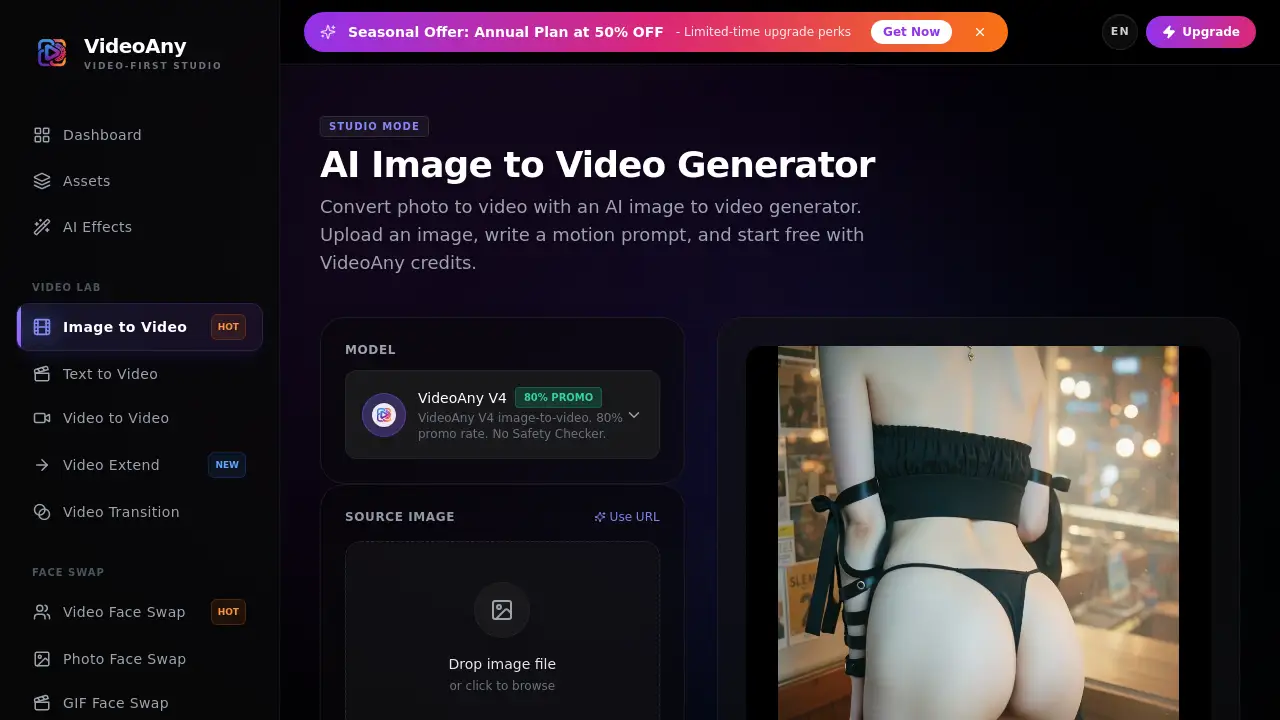
VideoAny Image to Video is an AI image to video generator that turns static photos into short, animated clips. Users upload an image, describe camera or subject motion, and receive a shareable video within seconds. This tool simplifies content creation for marketers, social media managers, and independent creators who need quick, cinematic visuals without editing experience.
What is VideoAny Image to Video?
VideoAny Image to Video is a cloud-based AI tool that converts a single photo into a moving video by interpreting a text motion prompt. Instead of manually keyframing or using complex animation software, a creator uploads a source image (JPG, PNG, WebP, or HEIC), writes what movement they want (e.g., “slow zoom in,” “pan right,” “subtle smile”), and the AI generates a short clip. The solution solves the problem of producing video content from existing still images – ideal for product demos, character animations, or social media reels. It is suitable for anyone who needs to add life to photos without learning video editing. The core value lies in speed: a few clicks turn a photograph into a video that can be exported in HD quality. The product also offers a free credit system to test the AI image to video generator before committing to paid plans. Because the uploaded image determines the subject, composition, and style, this photo to video workflow often yields more consistent results than text-to-video alternatives.
Key Features of VideoAny Image to Video
Image Upload with Format Flexibility
Supports JPG, PNG, WebP, and HEIC. Images should be at least 512×512 pixels for stable motion results. Users can drag and drop or click to browse.
Motion Prompt Input
A text box where the user describes camera movement (pan, zoom, dolly, orbit) or subject action. The AI interprets the input to produce a fluid video clip.
AI Processing Engine
The engine interprets the prompt and source image together, generating up to a 5-second clip (longer durations on select plans). Standard resolution is 720p, with higher options on specific models.
Credit-Based Free Trial
New users receive free credits to create videos. The cost is deducted per generation (e.g., 200 credits for a 720p 5-second clip, with a promo rate of 50 credits/s or 40 credits/s).
Quick Export in High Quality
Once generated, the video can be downloaded immediately. No watermark or branding is mentioned, allowing direct use in projects.
Batch Generation (Select Plans)
Upload multiple images and generate sequentially – useful for testing variations or creating a series of clips.
Use Cases for VideoAny Image to Video
Animate Product Images for Short Ads
Upload product photos, add a slow orbit or zoom, and export a short ad for listings or social posts. This image to video workflow saves time compared to filming.
Turn Portraits into Motion Tests
Describe a subtle head turn or eye movement to bring character concepts or artwork to life. Ideal for animators or concept artists.
Create Camera Moves from Still Frames
Use photo to video for storyboards, reel intros, or scene transitions. A simple dolly or pan can make a static composition feel dynamic.
Build Quick Variations Before a Longer Edit
Test different motion prompts and motion strengths on the same image to find the best look. The free credit model supports iteration without upfront cost.
How to Use VideoAny Image to Video
- Upload a source image – Choose a clear JPG, PNG, WebP, or HEIC file with a well-defined subject.
- Write a motion prompt – Describe camera movement (e.g., “slow zoom in,” “pan left”) or subject action (e.g., “hair blowing”). Start with simple, short instructions.
- Select a model and resolution – Choose from available AI models and set output resolution (720p is standard with free credits; higher resolutions on paid plans).
- Generate the clip – Click the generate button. Credits are deducted per generation.
- Refine if needed – If the output drifts from the original image, simplify the prompt or reduce motion strength and generate again.
- Export – Download the high-quality video file for use in projects.
Target Audience for VideoAny Image to Video
- Content creators – YouTubers, TikTokers, and Instagram users needing quick video assets.
- E-commerce sellers – Create product demos from still photos for listings or ads.
- Social media managers – Turn brand imagery into short, engaging clips for feeds and stories.
- Animators and designers – Test motion ideas from concept art or character designs.
- Marketers – Generate A/B test variations of ad visuals without a full production team.
- Hobbyists – Anyone who wants to animate personal photos for fun or storytelling.
Is VideoAny Image to Video Free?
VideoAny offers a free tier with credits to start creating immediately. Paid plans provide more credits, higher resolution options, and batch generation. Exact pricing details are available on the official website. Below is a general overview based on referenced information:
| Plan | Price | Features |
|---|---|---|
| Free | $0 | Limited credits, 720p output, single image generation |
| Pro | Varies | More credits, higher resolutions, batch generation, longer durations |
Users can test the AI image to video generator without commitment using the free credits.
VideoAny Image to Video's Pros and Cons
| Aspect | Pros | Cons |
|---|---|---|
| Ease of Use | Simple three-step workflow; no editing skills needed | Limited control over complex motions |
| Cost | Free credits available; no watermark | Paid plans may be expensive for heavy users |
| Output Quality | HD resolution (720p); consistent subject from source image | Longer durations only on select plans; occasional drift if prompt is too complex |
| Format Support | JPG, PNG, WebP, HEIC | No support for raw or high-bit-depth images |
| Batch Processing | Available on select plans | Not included in free tier |
| Content Policy | Minimal filtering for creative freedom | Must own rights to uploaded images; prohibited content enforced |
Frequently Asked Questions about VideoAny Image to Video
What image formats does the AI image to video generator support?
It supports JPG, PNG, WebP, and HEIC. For best results, images should be at least 512×512 pixels.
How long are the generated video clips?
Standard outputs are short clips (around 5 seconds). Longer durations may be available on select paid plans.
Can I control the motion precisely?
Yes. Describe one main action first, then add camera movement like pan, zoom, or orbit. Keep the prompt simple and close to the source image to avoid unwanted changes.
Is batch generation supported?
Batch generation is available on select paid plans. This allows uploading multiple images and generating sequentially.
Can I use this photo to video tool for NSFW content?
VideoAny supports creator-friendly workflows with minimal unnecessary filtering. However, illegal, non-consensual, deceptive, or harmful content is prohibited. Users must have rights to the content they upload.
Do I need to pay to start?
No. You can start free with credits. Paid plans offer more credits and higher limits.
VideoAny Image to Video Tags
AI image to video generator, photo to video, image to video, motion prompt, video generator, free credits, animate picture, cinematic clip, short video, video creation tool, AI video editor, VideoAny