Introduction
Cutscript is an AI video recorder and editor.
What is Cutscript?
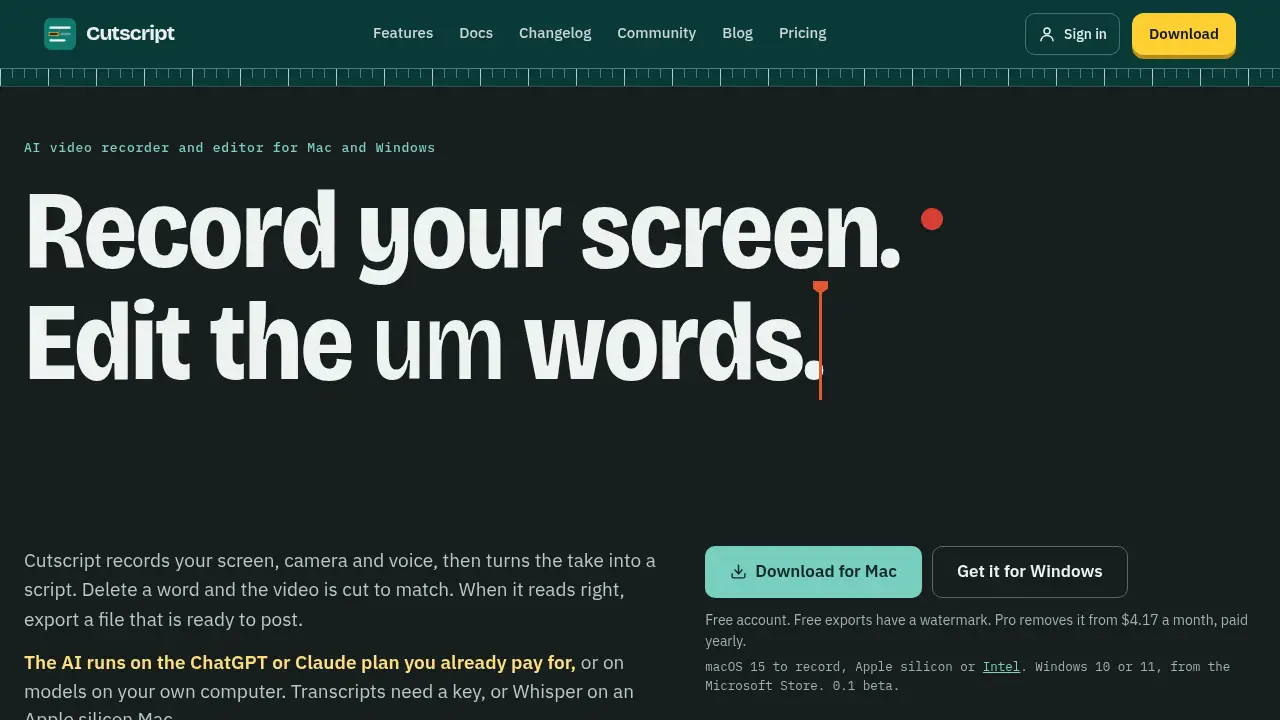
Cutscript is an AI video recorder and editor for Mac and Windows. It records screen, camera, voice, system sound, and pointer activity, then turns the recording into an editable script. Users can delete words in the script, and the video cuts to match. This makes Cutscript a practical script-based video editor for tutorials, demos, lessons, and other screen-led content.
The product is designed for people who want faster video editing without learning a complex timeline editor. Instead of cutting clips frame by frame, users edit the transcript. Cutscript also supports AI-assisted tasks through a user’s own ChatGPT or Claude plan, or through models on the user’s computer. This Cutscript review covers its main features, use cases, pricing, and limitations so readers can decide whether it fits their workflow.
Key Features of Cutscript
Screen and camera recording with separate tracks
Cutscript records screen, camera, microphone, system sound, and pointer as separate tracks. Users can adjust the camera, lower system sound, and restyle the pointer after recording.
Script-based video editing
The AI video recorder creates a transcript from each take. Users select words, press Delete, and the picture and sound are cut to match. Every cut can be restored, and the original file stays unchanged.
AI-assisted cleanup and corrections
Cutscript can remove filler words such as “um” and “you know” on the computer without calling AI. Users can also correct misheard words, ignore words, or search for phrases and delete every match.
Studio look and layout controls
A new recording can open with a Studio look that adds a background, padding, rounded corners, and a shadow. Users can also choose layouts with two, three, or four panels and change the layout at any word.
Zooms and pointer effects
On Mac, Cutscript can add zooms from where the user clicked. Users can choose Fewer, Balanced, or More, or press Z to add a zoom by hand. The pointer can also be restyled after recording on Mac.
Camera shapes and background removal
Cutscript offers nine camera shapes, borders, and chroma key options. The Pro remove background feature runs on the computer and can place a different background behind a person without a green screen.
Captions and multilingual dubbing
Captions come from the script, so deleted words are not captioned. Users can choose from 24 styles, burn captions in at export, or send a subtitle file. The dub and re-voice feature can say a section in another language over the same picture.
Color grading and face tools
The Colors panel changes the recording only, not the background or camera bubble. Cutscript can also find faces, give a face its own colors, detach a face into a bubble, and blur faces that stay blurred as they move.
Privacy and blur tools
Users can blur all faces, emails, and phone numbers on Mac. They can also drag a Blur or Pixelate box over anything and track it forward or backward. If a blur loses what it follows, the export warns the user.
Export and recovery
Cutscript exports a finished video file that is ready to post. The recorder also offers to recover a take after a crash or restart, and recording works without an internet connection.
Use Cases for Cutscript
Software tutorials and product demos
Cutscript is useful for recording a screen and explaining steps while the transcript stays editable. Users can remove mistakes, add zooms, and export a clean tutorial without a traditional timeline.
Online course lessons
Instructors can record camera and screen together, remove filler words, and add captions. The script-based editor helps keep lessons clear and easier to update.
Social media explainer videos
Creators can use Cutscript to record short screen-led videos, apply a Studio look, and add captions. The layout and zoom tools help keep the frame focused on the important action.
Customer support and QA recordings
Teams can record product issues or walkthroughs and blur private information. Face blur and email blur tools support safer sharing of internal recordings.
Multilingual video updates
The dub and re-voice feature lets users present one take in another language over the same picture. The new voice lands on the timeline as a normal audio clip, while the original stays in place.
How to Use Cutscript
- Open Cutscript and choose what to record, such as a display, window, area, camera, or microphone.
- Press record, speak, and show the screen. Pause or use a countdown if needed.
- Stop the take. Cutscript opens it as a project with a transcript if selected.
- Edit the script by deleting words, removing filler words, correcting mistakes, and adjusting layout, zooms, captions, or color.
- Export the finished video file. Free exports include a watermark; Pro removes it.
Target Audience for Cutscript
- Course creators and educators who record lessons
- Software teams making tutorials, demos, and QA videos
- YouTubers and social media creators who need fast screen-led edits
- Customer support and sales teams sharing product walkthroughs
- Podcasters and webinar hosts who want transcript-based editing
- Mac and Windows users looking for a simple AI video recorder
Is Cutscript Free?
Cutscript has a free account. Free exports include a watermark. Pro removes the watermark and starts from $4.17 per month when paid yearly.
| Plan | Price | Features |
|---|---|---|
| Free | $0 | Free account, recording and editing tools, exports with watermark |
| Pro | From $4.17/month, paid yearly | Removes watermark, includes Pro features such as remove background |
Cutscript is available for macOS 15 to record, on Apple silicon or Intel, and for Windows 10 or 11 from the Microsoft Store. The current version is listed as 0.1 beta.
Cutscript's Pros and Cons
| Aspect | Pros | Cons |
|---|---|---|
| Pricing | Free account available; Pro starts at $4.17/month paid yearly | Free exports include a watermark |
| Editing | Script-based editing is simple and fast | Version 0.1 beta may have rough edges |
| AI | Can use an existing ChatGPT or Claude plan, or local models | Transcripts need a key or Whisper on an Apple silicon Mac |
| Platform | Available for Mac and Windows | Several recording and pointer features are Mac-only |
| Export | Produces finished video files ready to post | Background removal can leave soft edges on hair or busy backgrounds |
Frequently Asked Questions about Cutscript
What is Cutscript best used for?
Cutscript is best for screen-led videos such as tutorials, product demos, course lessons, QA recordings, and social media explainers. Its script-based video editor helps users cut video by editing words instead of clips.
Does Cutscript work on Mac and Windows?
Yes. Cutscript is available for macOS 15 to record, on Apple silicon or Intel, and for Windows 10 or 11 through the Microsoft Store. Some features, such as pointer restyling, click-based zooms, and drawing, are Mac-only.
Do I need a ChatGPT or Claude subscription to use Cutscript?
Not always. Cutscript can use a user’s existing ChatGPT or Claude plan for AI edits, or run models on the user’s own computer. Transcripts need a key, or Whisper on an Apple silicon Mac.
Can I edit a video by deleting words in the transcript?
Yes. Cutscript turns a recording into a script. When a user deletes a word, the picture and sound are cut to match, and cuts can be restored. This is the core transcript-based editing workflow.
Is Cutscript free?
Cutscript offers a free account, but free exports include a watermark. Pro removes the watermark from $4.17 per month when paid yearly and includes Pro features such as remove background.
What are the main limitations of Cutscript?
Cutscript is still listed as 0.1 beta, so users may encounter rough edges. Some features are Mac-only, free exports are watermarked, and background removal can struggle with hair, busy backgrounds, or clear objects.
Cutscript Tags
Cutscript, AI video recorder, script-based video editor, screen recorder with transcript, AI video editor, edit video by script, transcript video editing, Mac screen recorder, Windows screen recorder, video dubbing tool, caption generator, background removal video