Introduction
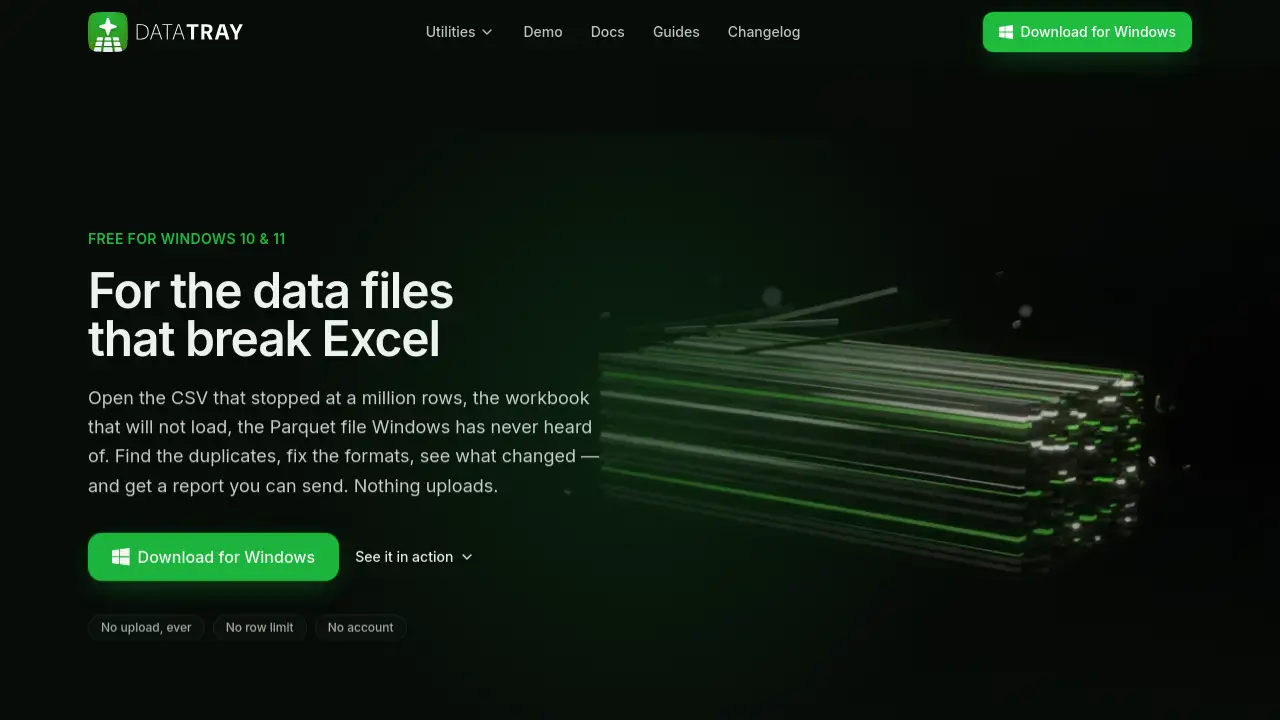
DataTray is a Windows app made for data files that are too large or too messy for Excel. This DataTray review covers what the tool does, who it is for, and whether it is free. DataTray opens CSV, Excel, Parquet, and JSON files, converts them, removes duplicates, cleans formatting, and compares results—all on the user’s own PC. No upload is required, and there is no row limit for local files.
What is DataTray?
DataTray is a desktop utility for Windows 10 and Windows 11. It is designed around a simple idea: handle the spreadsheet and data files that Excel cannot open or easily process. A CSV file that stops at a million rows, a large Excel workbook that will not load, or a Parquet file that Windows does not recognize can all be opened in DataTray.
DataTray groups five data jobs into one tray window: open, convert, dedupe, clean, and compare. Users can work with CSV files, Excel files, Parquet files, and JSON files without moving them to a cloud service. There is no account, no API key, and no upload step. This makes DataTray useful for sensitive spreadsheets such as salary lists, customer records, or patient data.
DataTray is not a spreadsheet app. It does not replace Excel or LibreOffice for everyday data entry, formulas, charts, or pivot tables. Instead, it is a practical file tool for people who need to inspect, clean, or convert data that is too big or too messy for a normal spreadsheet workflow.
Key Features of DataTray
Opens Files That Break Excel
DataTray opens multi-gigabyte CSV files, large Excel workbooks, and Parquet files without loading them entirely into memory. Users can see the first rows while the app continues reading the file.
Converts CSV, Excel, Parquet, and JSON Files
DataTray converts between common data formats. A large CSV can be filtered or split first, then exported as an .xlsx file for Excel users. Every completed job also produces an HTML report that can be emailed to other people.
Removes Duplicate Records
DataTray helps clean duplicate data in CSV files and Excel files. Instead of simply saying how many duplicates were removed, DataTray shows exactly which rows were removed. This makes the process easier to verify and share.
Cleans and Fixes Data
DataTray detects file encoding, delimiters, and column types automatically. It can handle common problems such as semicolon-delimited files that open in Excel as one column. Users can also fix formatting issues during the cleaning step.
Compares Files and Reports Changes
DataTray compares two versions of a file and highlights what changed. The result can be exported as a clear report. This is helpful for checking weekly exports, updated customer lists, or before-and-after data cleaning.
Keeps Data Local
One of the main selling points of DataTray is privacy. The app makes no upload and no network request for user files. There is no external server waiting to receive a spreadsheet, and no account is required.
Use Cases for DataTray
Opening a Large CSV File
When Excel cannot load a CSV file that has more than 1,048,576 rows, DataTray can open it on the local PC. The user can inspect the data, clean it, remove duplicates, or split it into smaller files.
Comparing Weekly or Monthly Data Exports
DataTray can compare an old export with a new export and show what was added, removed, or changed. This is useful for analysts who receive new versions of the same dataset every week.
Cleaning Messy Excel Workbooks
Users who receive workbooks with strange delimiters, wrong encoding, or inconsistent formatting can run them through DataTray. The app helps fix the file structure and produces a cleaner copy without altering the original.
Converting Parquet or JSON Files for Excel Users
Windows does not always have a built-in way to open Parquet files. DataTray reads these files and can convert them to a format that Excel users can open, provided the row count fits within Excel’s export limit.
Preparing Sensitive Data Before Sharing
DataTray can find personal data during a cleaning pass and mask it before the file is shared. The developer also states that this detection is pattern-based and does not certify that a file is safe to disclose.
How to Use DataTray
Using DataTray follows a simple local workflow:
- Install DataTray on a Windows 10 or Windows 11 PC.
- Drop a file into the tray window.
- Choose the right tile for the task, such as open, convert, dedupe, clean, or compare.
- Review the result and export the output file or HTML report.
The original file is never modified during the process. DataTray writes a new file next to the original and produces a report of what it found or changed.
Target Audience for DataTray
- Data analysts who work with files larger than Excel’s row limit.
- Business users who receive CSV exports from legacy systems.
- Privacy-conscious users who do not want to upload spreadsheets to free websites.
- People who need to open Parquet or JSON files on Windows.
- Users who need to dedupe customer lists or clean messy Excel data.
- Teams that need a shareable data change report without exposing source files.
Is DataTray Free?
DataTray is free and has no paid tier waiting behind it. The app is ad-free and does not ask for a credit card. It is funded differently: the app can share a slice of the device’s idle internet bandwidth through a partner called Massive. This partner traffic is separate from user files and never touches them.
| Plan | Price | Features |
|---|---|---|
| Free | $0 | Five local data tools, no upload, no ads, no account, no row limit for local files, HTML reports, and .xlsx export. |
Users are told about the bandwidth-sharing arrangement at install time. It can be turned off in Settings, although the tools pause while bandwidth sharing is switched off.
DataTray’s Pros and Cons
| Aspect | Pros | Cons |
|---|---|---|
| Pricing | Free, no subscription, no trial limit | Free use depends on an idle-bandwidth sharing arrangement |
| Privacy | Files never leave the user’s PC | Not available as a fully offline donation model |
| Compatibility | Works with CSV, Excel, Parquet, and JSON files | Windows 10 and 11 only |
| File Size | No Excel row limit during local processing | Converted .xlsx files must respect Excel’s row limit |
| Feature Scope | Clean, functional tray tools for repetitive data tasks | Not a spreadsheet and does not offer formulas or pivot tables |
Frequently Asked Questions about DataTray
Is DataTray really free?
Yes, DataTray is free and there is no paid tier behind it. The app is built around a no-upload local workflow and is paid for by sharing a small amount of idle internet bandwidth through a partner network.
Does DataTray upload my files?
No. DataTray keeps files on the user’s PC. The five tools do not make network requests, and there is no server waiting to receive a spreadsheet. The idle-bandwidth sharing feature relays other traffic, not user files.
Can DataTray handle files larger than Excel’s row limit?
DataTray can open files that go far beyond 1,048,576 rows. However, if the user converts a file to .xlsx for Excel, Excel’s own row limit comes back. DataTray can filter or split the data before export.
Is DataTray a replacement for Excel?
No. DataTray is not a spreadsheet application. It does not support formulas, cell formatting, charts, or pivot tables. For editing data by hand, Excel or LibreOffice Calc is still the right tool.
Does DataTray require an account or installation of extra components?
No. DataTray does not require an account, API key, or cloud service. It is installed as a Windows tray app and does not download extra models or database engines when a file is opened.
Can I turn off bandwidth sharing inside DataTray?
Yes. The bandwidth-sharing option is described at install time and can be switched off in Settings. When bandwidth sharing is off, the tools pause until it is switched back on.
DataTray Tags
DataTray, DataTray review, CSV file opener, large CSV files, Excel row limit, CSV to Excel converter, local data cleaning tool, Parquet file viewer, JSON converter, dedupe Excel file, compare files locally, no upload CSV tool