Introduction
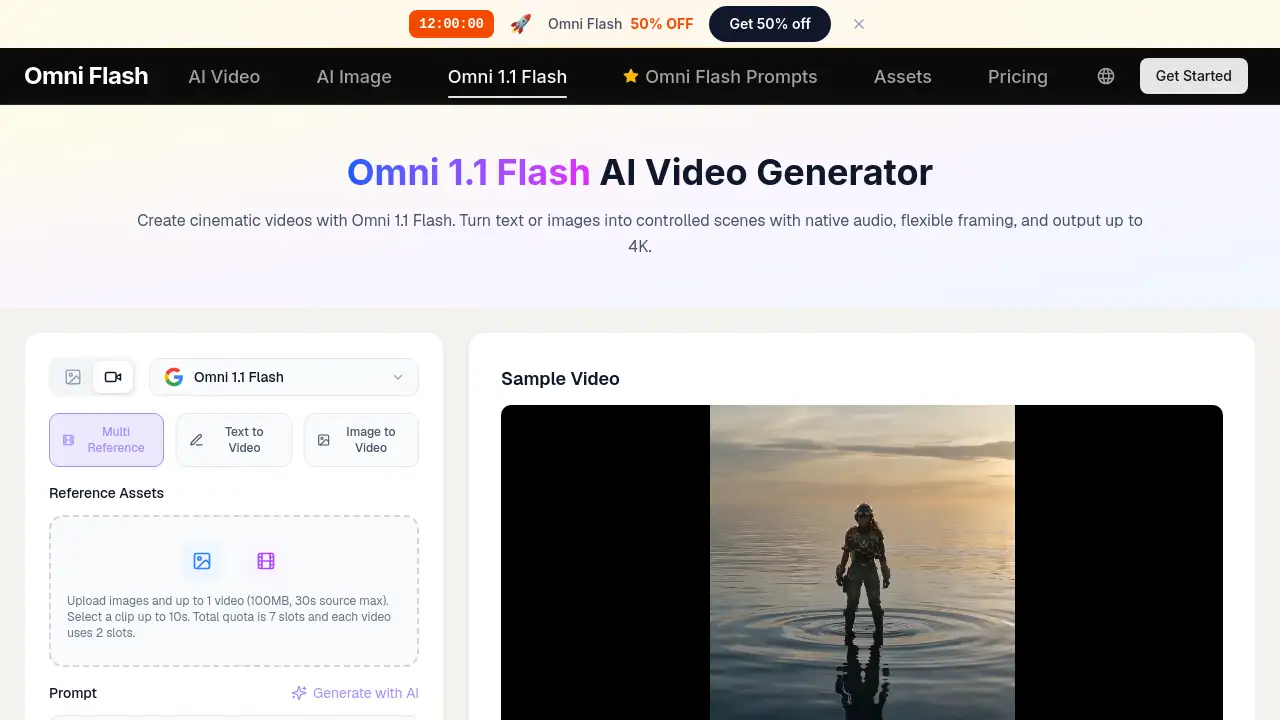
Omni 1.1 is an AI video generation model that turns text or images into cinematic clips with native audio, flexible framing, and output up to 4K. The Omni 1.1 Flash version extends scenes to 40 seconds, supports first and last frame control, and offers a fast 360p draft mode. This review covers the features, use cases, workflow, and limitations of Omni 1.1.
What is omni 1.1?
Omni 1.1 is an AI video tool built for creators who need more control over AI-generated video. Instead of only typing a prompt and hoping for the best, Omni 1.1 lets users set starting images, ending images, video references, camera direction, audio details, and resolution choices. It solves a common problem: keeping visual continuity across short video clips.
The most capable version described on the official product page is Omni 1.1 Flash. This model supports single clips of 3–10 seconds and can extend a compatible scene up to 40 seconds in 10-second steps. It carries forward character identity, motion direction, lighting, dialogue, and audio context. That makes it more useful for storytelling, product videos, social media, and previsualization than a simple one-shot generator.
Omni 1.1 also supports multiple output formats. Creators can work in 360p draft mode for quick tests, then move to 720p, 1080p, or 4K for final delivery. It supports both 16:9 landscape and 9:16 vertical aspect ratios, which means the same tool can produce assets for screens and mobile platforms.
The product matters because many AI video tools are creative but unpredictable. Omni 1.1 tries to make the process more dependable. It gives users clear controls over scene length, composition, and audio continuity, so the result is closer to an actual production workflow.
Key Features of omni 1.1
Video Extension Up to 40 Seconds
Omni 1.1 Flash extends a generated scene in 10-second increments. A single clip can be 3–10 seconds at 24 FPS, and compatible scenes can reach 40 seconds cumulative length while carrying forward visual and audio context.
First and Last Frame Control
Upload a starting image and an ending image, then describe how the camera and subjects should move. Omni 1.1 generates the transition between the two frames, making controlled orbits, push-ins, match cuts, reveal shots, and looping clips easier to direct.
Draft-to-4K Production
Test composition with 360p drafts before committing to final output. The draft mode can generate up to 60% faster and costs roughly one-third as much as standard 720p. Once the direction works, users can keep 720p or request an upscaled 1080p or 4K version.
Native Audio Continuity
Dialogue, ambience, and music remain consistent when a scene is extended. This is important for product demonstrations, social stories, music-video concepts, and longer narrative sequences where sound must match the visuals.
Flexible Resolutions and Aspect Ratios
Omni 1.1 Flash supports 360p, 720p, 1080p, and 4K output. It also supports 16:9 landscape and 9:16 vertical formats, giving creators one workflow for different publishing channels.
Reference Clips for Editing
Users can add up to three video reference clips, each three seconds long. These references help align a new generation with an existing visual style, character look, or editing approach.
Use Cases for omni 1.1
Short Narrative Films
Storytellers can use Omni 1.1 to build scenes in 10-second extensions. The model keeps character identity, motion direction, lighting, and dialogue across segments, which is useful for short films and music-video concepts.
Product Demonstrations
Product teams can describe a camera move, upload a first and last frame, and generate a controlled reveal, transformation, or walkthrough. The 4K output option makes the result suitable for advertising and client review.
Social Media Video
Vertical 9:16 output and looping clips fit mobile-first publishing. Omni 1.1 Flash also supports draft mode, so teams can compare multiple variants quickly before choosing the final take.
Storyboarding and Previsualization
Directors and animators can turn a storyboard into a moving shot with first and last frame control. The 360p draft mode reduces experimentation cost and speeds up the creative review process.
How to Use omni 1.1
Using Omni 1.1 can be broken down into three direct steps:
- Choose Text to Video or Image to Video. Start from a written scene or upload an image to anchor the subject and composition. Select a landscape or vertical format before generating.
- Direct the scene. Describe the subject, action, environment, camera movement, lighting, timing, dialogue, ambience, and music. For one continuous shot, avoid describing automatic cuts.
- Generate, review, and refine. Generate the clip, review motion and continuity, then adjust the prompt or starting image. When editing, keep the direction concise and specify what must remain unchanged.
Target Audience for omni 1.1
- Content creators who need quick text to video or image to video visuals.
- Video editors seeking continuity controls and clean scene extensions.
- Filmmakers and storyboard artists using previsualization.
- Social media managers publishing vertical or landscape videos.
- Product marketers who need 4K product footage for ads.
- Agencies that need fast variant testing with 360p draft mode.
Is omni 1.1 Free?
The reference information does not list a specific price for Omni 1.1 or Omni 1.1 Flash. The official page provides product and feature details, but it does not confirm whether a free tier or trial is available. For current plans, credit options, and pricing, check the official Omniflash.ai pricing page. Since the product offers draft mode and high-resolution output, the likely model may use credits or pay-per-generation, but this should be verified.
| Plan | Price | Features |
|---|---|---|
| Free / Trial | Not confirmed | Not listed in the reference material |
| Full access | See official site | Omni 1.1, Omni 1.1 Flash, video generation options |
omni 1.1's Pros and Cons
| Aspect | Pros | Cons |
|---|---|---|
| Video control | First and last frame control gives predictable transitions | Requires two images for full endpoint control |
| Length | Extends to 40 seconds with audio continuity | Single clips are only 3–10 seconds |
| Resolution | Supports up to 4K for final delivery | High resolution may require more processing time |
| Workflow speed | 360p draft mode generates up to 60% faster | Draft mode adds an extra review step |
| Reference clips | Supports up to 3 video reference clips | Each clip is limited to 3 seconds |
| Pricing | No confirmed details in the reference | Official pricing page should be checked |
Frequently Asked Questions about omni 1.1
Is Omni 1.1 the same as Omni Flash?
No. The official comparison shows Omni 1.1 Flash adds several capabilities that Omni Flash lacks, including scene extension, first and last frame control, higher resolutions, and draft mode.
How long can an omni 1.1 video be?
A single generation is 3–10 seconds. Compatible scenes can be extended in 10-second steps up to 40 seconds cumulative. Audio continuity carries across extended segments.
What resolutions are available with omni 1.1?
Omni 1.1 Flash supports 360p, 720p, 1080p, and 4K. The 360p draft mode is for quick iteration, while 1080p and 4K are better suited for final delivery.
Does omni 1.1 support image-to-video?
Yes. Users can upload an image as the starting frame. For stronger control, a first and last frame pair can guide the transition between two compositions.
Can I make vertical videos with omni 1.1?
Yes. The model supports 16:9 landscape and 9:16 vertical aspect ratios, which is useful for mobile publishing and platform-specific assets.
Does omni 1.1 keep audio when extending a scene?
The Omni 1.1 Flash extension process carries native audio across segments. This helps maintain dialogue, ambience, and music continuity in longer scenes.
omni 1.1 Tags
Omni 1.1, Omni 1.1 Flash, AI video generator, text to video AI, image to video AI, 4K video generation, first and last frame control, video extension, native audio, draft mode, cinematic AI, vertical video AI