Introduction
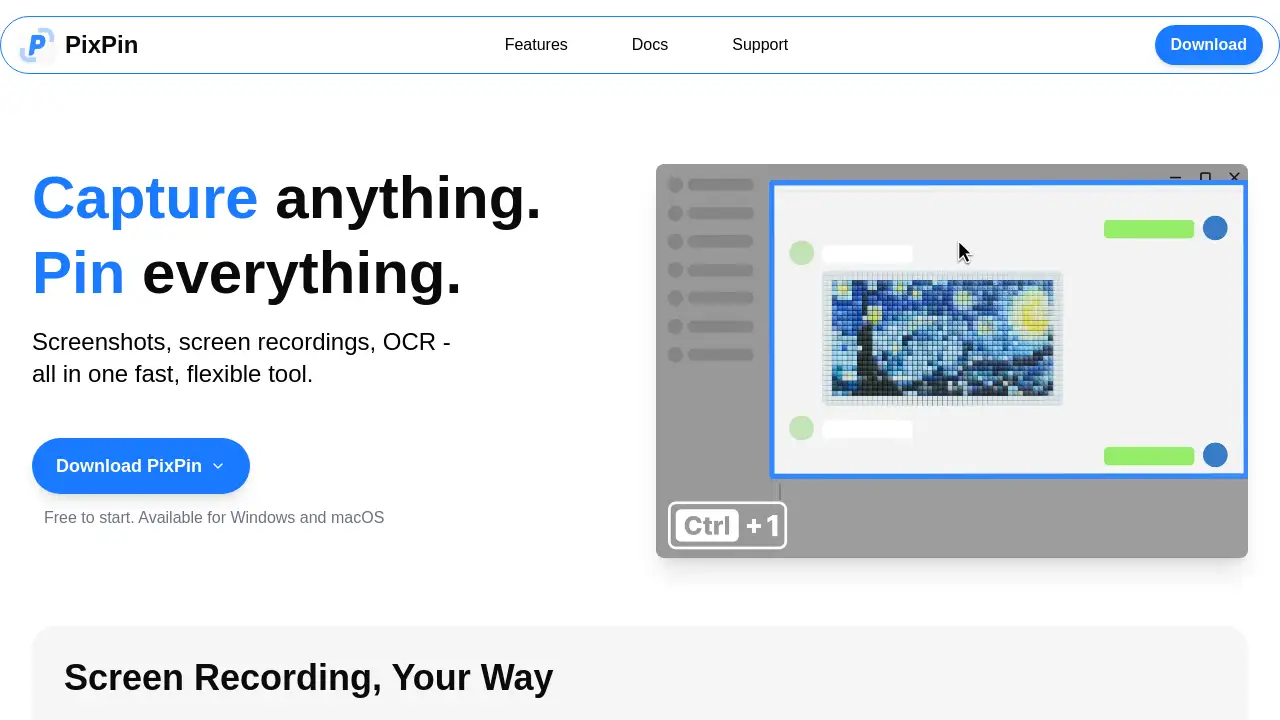
PixPin is a versatile screenshot and screen recording tool with OCR and annotation features for macOS and Windows.
What is PixPin?
PixPin is a fast, flexible productivity application that combines screenshots, screen recordings, and Optical Character Recognition (OCR) into one streamlined tool. It solves the common problem of switching between different apps for capturing, annotating, and extracting information from your screen. PixPin is suitable for professionals like designers, developers, and writers, as well as anyone who needs to document, share, or reference visual information quickly. Its core value lies in centralizing these essential tasks, saving time, and enhancing communication through visual content. The ability to pin screenshots and notes directly to the desktop makes it a powerful tool for workflow efficiency.
Key Features of PixPin
Smart Screenshot Capture
Quickly and precisely capture full screens, specific windows, or custom regions with smart auto-detection tools.
Screen Recording & GIF Creation
Record high-quality video or GIFs directly from your screen, with options for adding annotations during the recording.
Long Page Capture
Stitch together long web pages, documents, or chat threads into a single, continuous image for easy sharing or reference.
Pin to Screen Function
Pin any captured image, text snippet, or color swatch directly to your desktop as a sticky note for instant, always-on-top reference.
OCR Text Extraction
Instantly extract and copy text directly from images, screenshots, or pinned notes, eliminating the need for manual retyping.
Advanced Annotation Tools
Annotate screenshots and notes with shapes, arrows, sequence numbers, highlighters, and mosaic blur to communicate ideas clearly.
Quick Pin Screenshot (Pro)
Use a global hotkey and mouse drag to instantly capture and pin a screenshot in one fluid motion for rapid note-taking.
Action Recording (Pro)
Record on-screen activity along with keystroke and mouse click overlays, creating perfect step-by-step tutorials and demos.
Use Cases for PixPin
Visual Design Feedback
Designers can pin UI mockups and annotate them directly on screen for collaborative feedback and iteration.
Software Bug Reporting
Developers can quickly capture bugs with annotated screenshots or record video reproductions of issues for clear documentation.
Process Documentation & Tutorials
Educators and trainers can create annotated screenshots and GIFs or record detailed action videos to explain complex procedures.
Research & Content Creation
Writers and researchers can use the OCR feature to extract quotes from images and pin reference materials while composing documents.
Customer Support Guidance
Support agents can record annotated screen recordings to visually guide users through troubleshooting steps.
Product Management Workflows
Product managers can document user flows with long captures and organize feedback using pinned notes and extracted text.
How to Use PixPin
- Download and Install: Visit the official PixPin website and download the installer for your Windows or macOS system.
- Capture Content: Use the default hotkeys or the system tray icon to initiate a screenshot, screen recording, or long page capture.
- Edit and Annotate: Immediately after capture, use the built-in editor to add annotations, shapes, text, or blur sensitive areas.
- Pin or Share: Choose to pin the result to your screen as a sticky note for reference, or save/export it to your clipboard or a file for sharing.
Target Audience for PixPin
- Designers and UI/UX professionals
- Software developers and QA testers
- Product managers and project leads
- Customer support and technical writing teams
- Educators, trainers, and online course creators
- Writers, researchers, and students
- General users who frequently take screenshots and need organized visual notes
Is PixPin Free?
PixPin offers a free tier to get started, with a Pro version available for advanced features. Based on the homepage content:
| Plan | Price | Key Features |
|---|---|---|
| Free | $0 | Basic screenshot, screen recording, pinning, OCR, and annotation tools. |
| Pro | Subscription-based (Check official site for latest pricing) | Quick Pin Screenshot, Action Recording (keystroke/mouse overlay), and other advanced productivity features. |
Users can start with the free version without signing up and upgrade to PixPin Pro for the full feature set.
PixPin's Pros and Cons
| Aspect | Pros | Cons |
|---|---|---|
| Features & Usability | Combines screenshot, recording, OCR, and pinning in one tool. Intuitive and fast. | Advanced Pro features like action recording require a paid subscription. |
| Workflow Integration | Pin to screen function is excellent for multi-tasking and reference. Quick capture hotkeys boost efficiency. | May have a learning curve for users new to advanced screen capture tools. |
| Pricing & Value | Free tier is robust for basic needs. Pro features are valuable for professional use cases. | Pricing for the Pro plan is not publicly listed on the homepage, requiring a visit to the official site. |
Frequently Asked Questions about PixPin
Is PixPin completely free?
PixPin has a fully functional free version that includes core features like screenshots, basic recording, pinning, OCR, and annotation. Advanced features like Quick Pin Screenshot and Action Recording are part of the PixPin Pro subscription.
Can PixPin capture scrolling web pages?
Yes, PixPin includes a long capture feature specifically designed to stitch together long pages, documents, or chats into a single, seamless image.
How does the "Pin to Screen" feature work?
When you capture a screenshot or select text, you can choose to "pin" it. This creates a floating, always-on-top window on your desktop that acts like a digital sticky note, perfect for referencing information while you work in other applications.
Does the OCR work on any image?
The Optical Character Recognition (OCR) feature works on images and screenshots you take with PixPin or images you load into the app. It allows you to select and copy text directly from these images.
What platforms does PixPin support?
PixPin is available as a native application for both Windows and macOS operating systems.
What is the difference between a screen recording and an action recording?
A standard screen recording captures video and audio from your screen. The Pro Action Recording adds an overlay that visually displays keystrokes and mouse clicks, which is ideal for creating clear software tutorials and demonstrations.
PixPin Tags
screenshot tool, screen recorder, OCR software, pin screenshots, screen annotation, productivity app, Windows screenshot tool, Mac screen capture, long screenshot, GIF recorder, text extraction, sticky notes for desktop, design tool, developer tool, tutorial software