Introduction
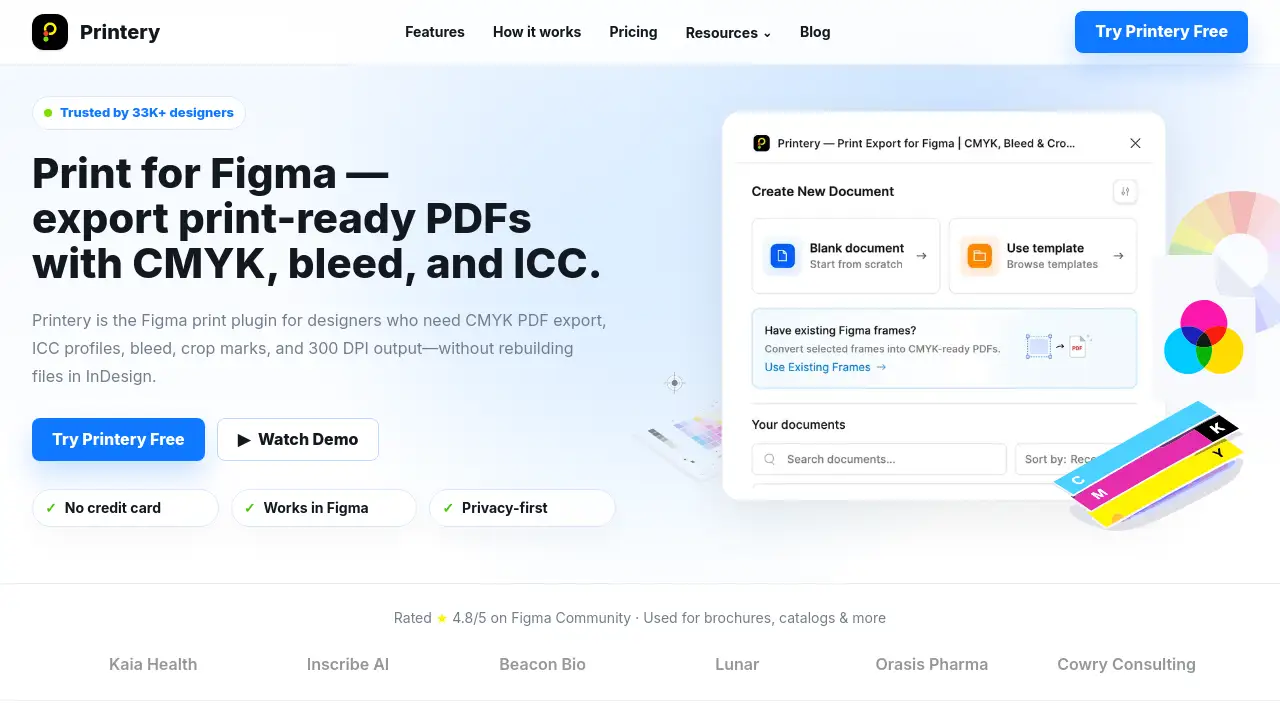
Printery - Print for Figma is the essential plugin for designers needing to export professional, print-ready PDFs directly from Figma.
What is Printery - Print for Figma?
Printery is a Figma plugin designed to bridge the gap between digital design and physical print production. Figma excels at on-screen design, but exporting files for commercial printing requires specific controls like CMYK conversion, ICC color profiles, bleed, and crop marks. Printery solves this problem by integrating these essential prepress features directly into the Figma workflow. This tool is suitable for graphic designers, marketing teams, agencies, and anyone who needs to create print-ready materials—such as brochures, posters, packaging, and catalogs—without switching to dedicated desktop publishing software like Adobe InDesign. By enabling print-ready PDF export from Figma, Printery saves time, reduces errors, and streamlines the handoff to print shops.
Key Features of Printery - Print for Figma
CMYK PDF Export
Printery enables the export of true CMYK PDFs, converting RGB designs from Figma into the color space used by professional printing presses for accurate color reproduction.
ICC Profile Embedding
The plugin allows designers to embed standard ICC profiles, such as ISO Coated v2 or SWOP, ensuring color consistency from screen to final printed piece.
Bleed and Crop Marks
Users can add bleed areas and crop marks with a single click, creating properly formatted files that meet the exact specifications required by print production workflows.
DPI Control and Verification
Printery provides full control over export resolution, allowing users to set output to the standard 300 DPI for commercial quality or lower DPI for drafts and proofs.
Pantone and Spot Color Support
For branding and packaging projects, the plugin supports Pantone spot colors and offers overprint settings, giving designers advanced color management tools.
Multi-Page PDF Export
Designers can batch export entire multi-page documents, such as brochures or manuals, as a single, print-ready PDF, streamlining the production of longer-format materials.
Use Cases for Printery - Print for Figma
Marketing Material Production
Marketing teams and agencies can efficiently produce high-volume flyers, posters, and promotional catalogs directly from their Figma design files.
Packaging and Brand Identity Design
Brand and packaging designers benefit from precise color control with spot colors and ICC profiles, ensuring their physical products match their digital brand guidelines.
Agency and Print Shop Handoff
Agencies can deliver perfectly prepared files with bleed, crop marks, and correct color settings to their print partners, reducing back-and-forth communication and errors.
In-House Design Team Workflows
Corporate in-house design teams can manage the entire creation process for business cards, stationery, and internal reports within Figma, accelerating project timelines.
How to Use Printery - Print for Figma
Using Printery within Figma is a straightforward process designed for a seamless print production workflow.
- Install and Set Up: Install the Printery plugin from the Figma Community. Create a new print document within the plugin, setting your desired paper size, orientation, and page count.
- Design with Print Guides: Design your layout in Figma as usual. Utilize Printery's guides for bleed areas and safety zones to ensure critical content is positioned correctly.
- Configure Export Settings: Select the frames or pages you want to export. Configure the key settings: choose CMYK color mode, select the appropriate ICC profile, set DPI to 300, and enable bleed and crop marks.
- Export: With one click, export a print-ready PDF that contains all the necessary specifications for professional printing.
Target Audience for Printery - Print for Figma
- Freelance Graphic Designers creating print materials for clients.
- Marketing and Branding Agencies producing brochures, catalogs, and promotional items.
- In-House Corporate Design Teams responsible for business collateral.
- Print Shops and Prepress Professionals receiving files from clients.
- Product and Packaging Designers working on physical product branding.
Is Printery - Print for Figma Free?
Printery offers a free tier to start and a Pro plan for full production capabilities. The pricing structure is as follows:
| Plan | Price | Key Features |
|---|---|---|
| Free | $0 | 5 document creations per week, 2 PDF exports per month (CMYK or RGB), basic bleed & crop marks, preset page sizes, DPI checker. |
| Pro (Monthly) | $12/month | Unlimited documents & exports, ICC profiles & custom color mapping, Pantone & spot color control, overprint settings, multi-page PDFs, priority support. |
| Pro (Yearly) | $48/year ($4/month) | All Pro features at a significant discount, early access to new features, priority email support. |
Printery - Print for Figma's Pros and Cons
| Aspect | Pros | Cons |
|---|---|---|
| Workflow Integration | Seamlessly integrates into Figma, eliminating the need to rebuild files in InDesign. | Limited to the Figma ecosystem; not a standalone application. |
| Feature Set | Comprehensive print-specific features (CMYK, ICC, bleed, crop marks) that Figma lacks natively. | Advanced prepress features may have a learning curve for designers new to print production. |
| Pricing & Value | Generous free tier for testing; Pro plan is affordable for professionals and teams. | The monthly Pro plan may be considered expensive for very occasional users. |
| Ease of Use | Simplifies complex print export settings into a guided, intuitive interface within Figma. | Requires basic understanding of print terminology (e.g., DPI, bleed, ICC profiles) for best results. |
Frequently Asked Questions about Printery - Print for Figma
Can I really use Figma for professional print design?
Yes, with the right export controls. Printery provides the essential print production features—CMYK conversion, ICC profiles, bleed, and crop marks—that transform a standard Figma design file into a print-ready PDF suitable for commercial printers.
Do I still need Adobe InDesign if I use Printery?
For many common projects like brochures, flyers, posters, and marketing materials, Printery can fully replace InDesign. InDesign remains better suited for extremely long-form documents (e.g., books) or projects requiring its advanced typographic and layout tools.
Which ICC profile should I use for my print-ready PDF?
The correct ICC profile depends on your printer and region. Common standards are ISO Coated v2 (Europe) and SWOP (United States). It's best to ask your print shop for their preferred profile and select it in Printery before export.
What DPI should I export my files at?
For commercial printing, 300 DPI is the standard for high-quality output. You can use lower resolutions like 150 DPI or 72 DPI for draft proofs or digital viewing where file size is a concern.
How do I cancel my Printery Pro subscription?
If you subscribed, you received a confirmation email from PayPro Global with a link to your Customer Panel where you can manage or cancel your subscription. If you cannot find this email, you can contact Printery's support team for assistance.
Does Printery support multi-page documents?
Yes. A key feature of Printery is the ability to batch export multiple pages or frames at once, creating a single, multi-page print-ready PDF. This is ideal for brochures, manuals, and pitch decks.
Printery - Print for Figma Tags
Print for Figma, Figma print plugin, export print-ready PDF, CMYK PDF export, Figma to print, ICC profiles Figma, add bleed in Figma, crop marks Figma, print production workflow, design for print, Figma plugin for designers, professional PDF export, Pantone Figma, multi-page PDF Figma