Introduction
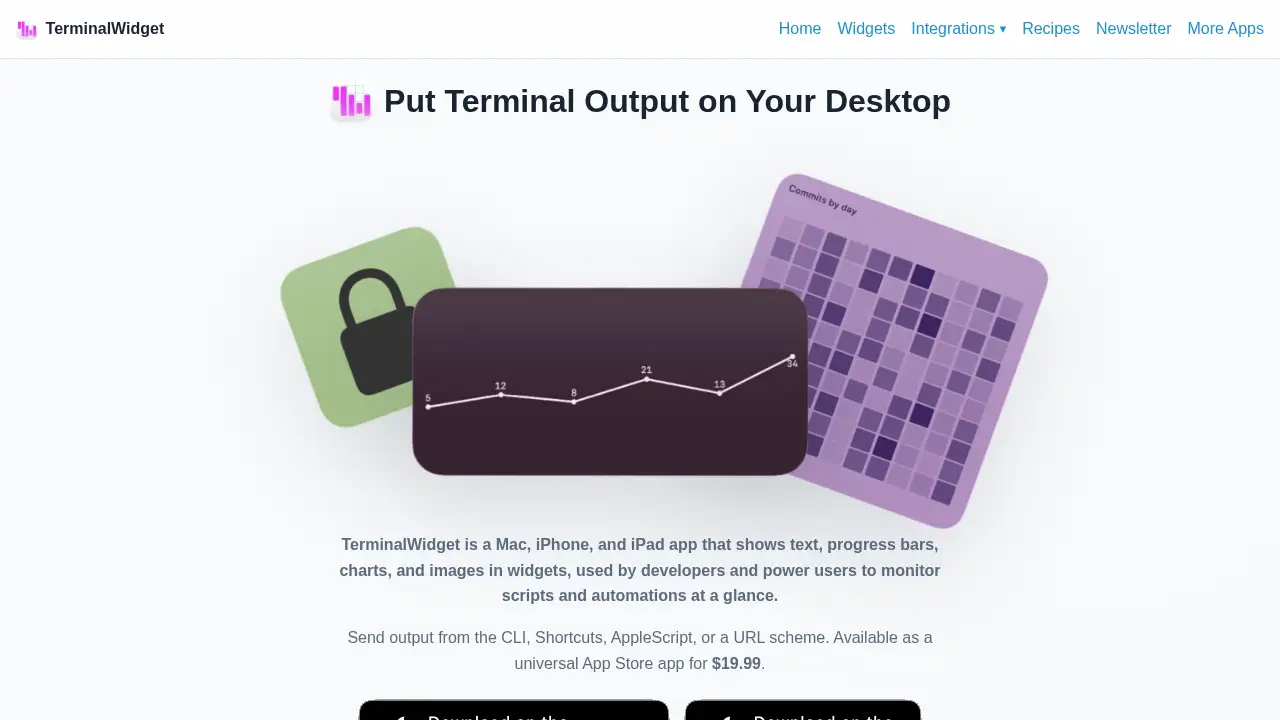
TerminalWidget is a Mac, iPhone, and iPad app that puts live terminal output on your desktop as widgets. It displays text, progress bars, charts, and images pushed from scripts, command-line tools, or automations, so developers can check status at a glance.
What is TerminalWidget?
TerminalWidget is a native utility for Apple platforms that turns plain command-line output into readable widgets. Instead of opening a terminal window, scrolling through logs, or building a custom web dashboard, you send data to a named widget target and the result appears on your Desktop or Home Screen.
The problem it solves is visibility. Long-running scripts, builds, downloads, and backup jobs often run quietly in the background. A terminal widget gives that work a visible surface — a percentage, a sparkline, a status message — without extra infrastructure. There is no always-on web server and no hosted monitoring account.
The app suits developers, system administrators, and power users who already work with the command line, Shortcuts, or AppleScript. It is available as a universal App Store app for a one-time $19.99 purchase, and the same widget targets can sync across Macs, iPhones, and iPads when iCloud is enabled. For anyone who wants a lightweight terminal output widget rather than a full monitoring stack, the value is in the small footprint and the short setup path.
Key Features of TerminalWidget
Real-Time Output at a Glance
Push text from terminal commands and see it update instantly on macOS, with rapid sync on iOS through iCloud. This makes a simple terminal output widget useful for build messages, job status, or error alerts.
Full CLI and Automation Support
Use the included terminal-widget command with flags such as --target, --text, --progress, --chart, and --fg. Shortcuts, AppleScript, and a URL scheme provide the same control for automation on Mac and iOS.
Multiple Widget Targets
Address widgets individually from scripts by name and keep separate displays for separate jobs. When iCloud is on, the same widget targets stay consistent across Macs, iPhones, and iPads.
Rich Visual Payloads
Render progress bars, charts, sparklines, matrix-style integer displays, tables from CSV or JSON, and local or remote images. Edge-to-edge image layouts are supported for more branded or visual widgets.
Full Customization
Adjust colors, fonts, icons, titles, and captions on every update, so each payload can carry its own formatting. This keeps a widget dashboard readable when several targets sit side by side.
Native and Lightweight
TerminalWidget ships as a Mac App Store app using WidgetKit widgets and a small CLI. There is no Electron shell and no web server running in the background, which keeps resource use modest.
Use Cases for TerminalWidget
Monitoring Long-Running Scripts
Track a backup, encoding job, or data export with a live progress bar instead of watching a terminal window. A single CLI call updates the widget as the job advances.
Build and Deployment Status
Show "Build complete" or "Tests failed" with an icon and color directly on the desktop. Teams and solo developers both get a fast visual signal without opening another app.
Home Screen Glances on iPhone and iPad
Sync the same targets to mobile devices and check status without returning to a Mac. This is useful when automations run remotely or in the background.
Personal Metrics and Data Displays
Feed CSV or JSON into a table or chart widget to display counts, totals, or daily numbers. The chart and sparkline options turn plain values into a quick visual summary.
Quick Actions from a Widget
Assign tap or click actions per target to open a URL, launch a Mac app, run a Shortcut, run a shell command on macOS, or refresh from a URL. Actions sync with the widget payload over iCloud.
How to Use TerminalWidget
- Install TerminalWidget from the App Store and open it once, allowing notification permission on iPhone and iPad so background refreshes can work.
- Add a widget to your Desktop or Home Screen, then open Edit Widget and set a Target name.
- Send data with the included CLI, for example
terminal-widget --target widget1 --text "Build complete" --icon "checkmark.seal.fill" --progress 100 --fg "#22c55e". - Alternatively, push the same fields through Shortcuts, AppleScript, or the URL scheme.
- Confirm the target name matches exactly, since names are case-sensitive, and adjust widget appearance or tap actions as needed.
Target Audience for TerminalWidget
- Developers running builds, tests, and local scripts
- System administrators monitoring scheduled jobs and backups
- Automation users working with Shortcuts, AppleScript, or shell scripts
- Power users who want a small desktop dashboard without a server
- Multi-device users who want the same widget targets on Mac, iPhone, and iPad
Is TerminalWidget Free?
TerminalWidget is a paid app with a one-time purchase. No free tier or subscription is listed in the reference information.
| Plan | Price | Features |
|---|---|---|
| Universal App Store purchase | $19.99 one-time | Mac, iPhone, and iPad app, WidgetKit widgets, full CLI, Shortcuts, AppleScript, URL scheme, iCloud target sync |
Because it is a single purchase rather than a subscription, the cost does not grow with usage or with the number of widgets created.
TerminalWidget's Pros and Cons
| Aspect | Pros | Cons |
|---|---|---|
| Pricing | One-time $19.99 purchase, no subscription | No free version or trial mentioned |
| Setup | Simple CLI with clear target naming | Widgets are never placed automatically; target names are case-sensitive |
| Platforms | One app for Mac, iPhone, and iPad with iCloud sync | iOS refresh depends on iCloud and notification permission |
| Performance | Native app with a small CLI, no web server | macOS may dim Desktop widgets outside Show Desktop mode |
| Display options | Text, progress bars, charts, tables, and images | SVG rendering is not full WebKit, so text elements may need converting to paths |
Frequently Asked Questions about TerminalWidget
How do I update a widget from a script?
Add a widget first, set its Target name in Edit Widget, then call the CLI with matching flags such as --target, --text, and --progress. Shortcuts, AppleScript, and the URL scheme accept the same fields. Mac updates apply immediately; iPhone and iPad sync through iCloud.
Why is my CLI update not showing on the widget?
TerminalWidget does not place widgets for you. You must add one manually and set its target name to match the value passed in the command. Names are case-sensitive, so a small typo will send data to a target that does not exist.
Can tapping a widget run an action?
Yes. A tap or click action can be assigned per widget target, including opening a URL, launching a Mac app, running a Shortcut, running a shell command on macOS, or refreshing from a URL. On iOS, URL and Shortcut actions are supported.
What content can a widget display?
Widgets support plain or formatted text, progress values from 0 to 100, sparklines and other chart styles, matrix-style integer displays, tables from CSV, TSV, or JSON, and local or remote images. Colors, fonts, icons, titles, and captions can be set on each update.
Does TerminalWidget need internet access?
Local Mac updates work without a network connection. Cross-device sync relies on iCloud, so every Mac, iPhone, and iPad should be signed into the same Apple ID with iCloud enabled for the app.
Why do desktop widgets look dimmed on Mac?
macOS can dim Desktop widgets when Show Desktop mode is off. Setting Dim widgets on desktop to Never in System Settings under Desktop & Dock keeps them fully visible.
TerminalWidget Tags
TerminalWidget, terminal output widget, Mac widget app, terminal widget for macOS, CLI widget, developer dashboard widget, monitor scripts on desktop, progress bar widget, Shortcuts automation widget, AppleScript widget, iCloud widget sync, iPhone and iPad widget app