Introduction
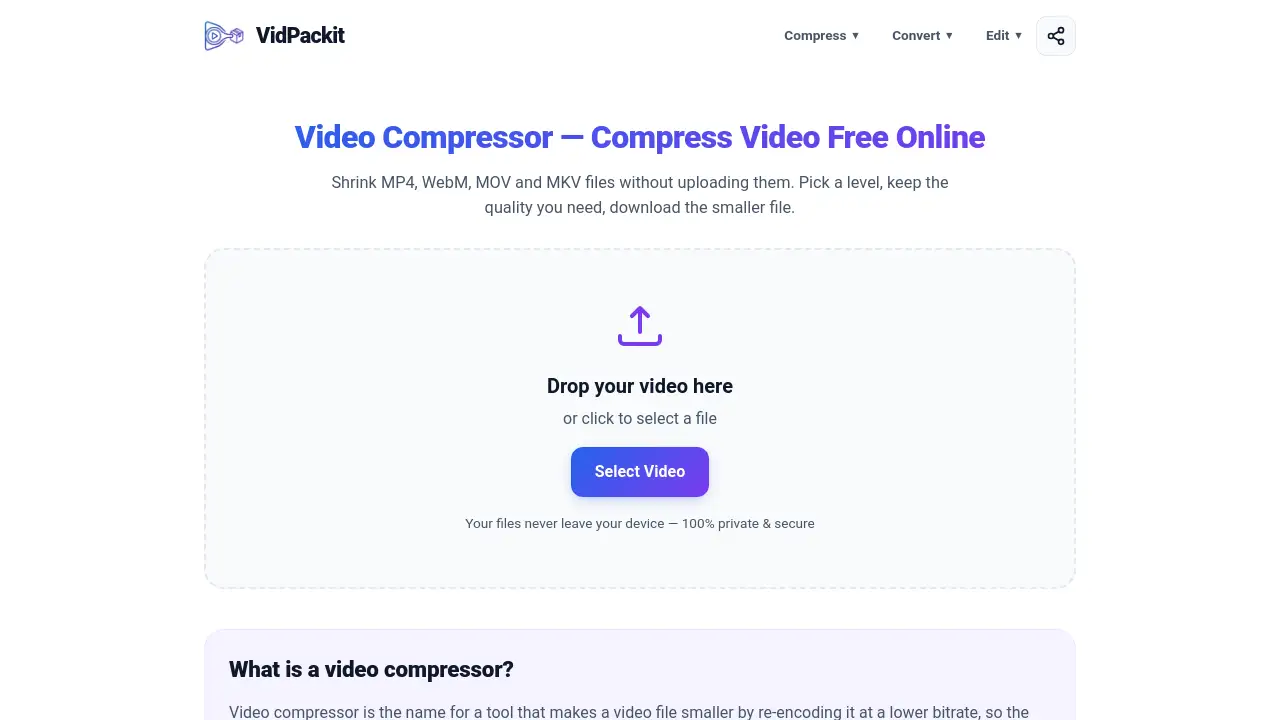
Video Compressor — VidPackit shrinks video in your browser.
What is Video Compressor — VidPackit?
Video Compressor — VidPackit is a free browser-based video compressor that reduces video file size without uploading files to a server. It is built for people who want to compress MP4, WebM, MOV, MKV, M4V, or MPEG video quickly. The tool reads a video file, decodes it, and re-encodes it locally in desktop Chrome or Edge using WebCodecs. Users choose a compression level and an output format, then download a smaller video. This solves common problems such as large files that are hard to email, slow uploads, and limited device storage. It is useful for creators, students, remote workers, and anyone who needs a no-upload video compressor with no watermark and no signup. Because the work happens on the user’s device, the original file never leaves the computer. The result is a practical video size reducer for everyday clips, screen recordings, and short videos.
Key Features of Video Compressor — VidPackit
In-Browser Compression with No Upload
VidPackit compresses video directly in the browser, so users can reduce video size without sending private footage to a server. This no-upload video compressor uses the File API and WebCodecs to keep the entire job on the local device.
Four Clear Compression Levels
The video compressor offers Original, High, Medium, and Low levels. Each level shows the target video and audio bitrate before encoding, which makes it easier to compress video with predictable results.
Support for Popular Video Formats
VidPackit works as an MP4 compressor, WebM compressor, MOV compressor, and MKV compressor. It can also output M4V and MPEG-TS video files, depending on browser support.
Audio-Only Output Options
The video compressor can extract audio as MP3, AAC, WAV, FLAC, or OGG. This is helpful when only the soundtrack is needed, not the full video.
No Watermark, No Signup, No Queue
The video compressor does not add a logo, ask for an account, or place files in an upload queue. It is free to use and has no daily limit mentioned in the product information.
Resolution Downscaling
VidPackit, a browser video compressor, can drop video resolution to 720p, 480p, or 360p. This gives another way to reduce video size when bitrate changes alone are not enough.
Transparent Bitrate Targets
The video compressor calculates a target bitrate from the source file. The target is clamped to the source bitrate, so a compressed video never comes back larger than the original.
Built for Desktop Chrome and Edge
The browser video compressor runs on desktop Chrome and Edge because they support the needed WebCodecs features. Formats that a browser cannot encode are greyed out instead of failing midway.
Use Cases for Video Compressor — VidPackit
Shrinking Clips for Email and Messaging
Large videos often exceed attachment limits. VidPackit can compress video into a smaller MP4 or WebM file that is easier to send and share.
Preparing Social Media Uploads
Creators can use the video compressor to compress video before posting. Lower levels help when a platform has upload limits or when mobile data is slow.
Saving Storage on a Laptop
A browser video compressor helps free up space without installing extra software. Users can compress MOV, MKV, or MP4 files and keep the smaller version.
Converting Containers Without Heavy Compression
The video compressor can repackage a video into another container with the Original level. This is useful for users who want to convert MP4 to WebM or MOV to MKV without shrinking quality further.
Extracting Audio for Notes or Podcasts
The video compressor’s audio-only output turns a video into MP3, AAC, WAV, FLAC, or OGG. This works well for interviews, lectures, and voice recordings.
Handling Privacy-Sensitive Footage
Because no upload happens, the video compressor is suitable for private clips, work documents, or personal videos. Users can even disconnect from the internet after the page loads and continue encoding.
How to Use Video Compressor — VidPackit
- Open VidPackit in desktop Chrome or Edge and drop a video file into the tool, or choose one from the device.
- Review the file details, including size, duration, resolution, codec, and audio track.
- Choose a compression level: Original, High, Medium, or Low. Pick an output format and optionally reduce resolution.
- Press the encode button. The browser compresses video locally, showing progress and a time estimate.
- Download the finished file. No video data is uploaded during the process.
Target Audience for Video Compressor — VidPackit
- Content creators who need to compress video for uploads
- Students and teachers sharing lecture recordings
- Remote workers sending large screen recordings
- Social media users posting clips from a laptop
- Podcasters and interviewers extracting audio
- Privacy-focused users who prefer a no-upload video compressor
- Anyone looking for a free video size reducer on Chrome or Edge
Is Video Compressor — VidPackit Free?
Yes. VidPackit is free to use. The product information states that there is no account, no payment step, no daily limit, and no watermark on the output.
| Plan | Price | Features |
|---|---|---|
| Free | $0 | Browser-based video compression, no upload, no watermark, no signup, multiple video and audio output formats, desktop Chrome and Edge support |
No paid plan is mentioned in the reference information. Users should check the official site for any future changes.
Video Compressor — VidPackit's Pros and Cons
| Aspect | Pros | Cons |
|---|---|---|
| Pricing | Free to use with no account or watermark | No paid support or advanced enterprise features mentioned |
| Privacy | Files stay on the device; no upload required | Browser-based processing depends on local device resources |
| Features | Compresses MP4, WebM, MOV, MKV, M4V, MPEG; audio-only output; resolution downscaling | Runs only on desktop Chrome and Edge |
| Transparency | Shows target bitrate before encoding | Lower bitrate levels can reduce visual quality |
| Convenience | No signup, no queue, no daily limit | Very large files may exceed device memory |
Frequently Asked Questions about Video Compressor — VidPackit
Does compressing a video reduce quality?
Lowering the bitrate removes some detail, which is how a video compressor makes a file smaller. VidPackit shows target bitrates before encoding. The Original level keeps the source bitrate and can copy audio untouched when the container allows it. High targets 70% of the source video bitrate, while Medium and Low trade more detail for a smaller file.
Is VidPackit free?
Yes. VidPackit is a free video compressor with no account, no payment step, no daily limit, and no watermark. Users can compress video files as often as their device can handle.
Are my videos uploaded anywhere?
No. The video compressor runs in the browser with WebCodecs. The file is read locally, decoded locally, encoded locally, and written back to the device. No copy is sent to VidPackit or another server.
Is there a file size limit?
The video compressor does not set a fixed file size limit. The practical limit is device memory because the whole file is processed in the browser. A desktop computer can often handle larger clips than a phone or a low-memory laptop.
Which browsers support VidPackit?
Desktop Chrome and Edge are the supported browsers. They provide the WebCodecs support needed for in-browser encoding. Other browsers may show a warning, and formats they cannot encode are greyed out.
Can I convert a video instead of compressing it?
Yes. Users can leave the level on Original to repackage a video into another container, or choose High, Medium, or Low to reduce video size with this video compressor. The tool also supports audio-only extraction for MP3 and other audio formats.
Video Compressor — VidPackit Tags
video compressor, compress video, VidPackit, browser video compressor, online video compressor, compress MP4, compress WebM, compress MOV, compress MKV, free video compressor, no upload video compressor, reduce video size