Introduction
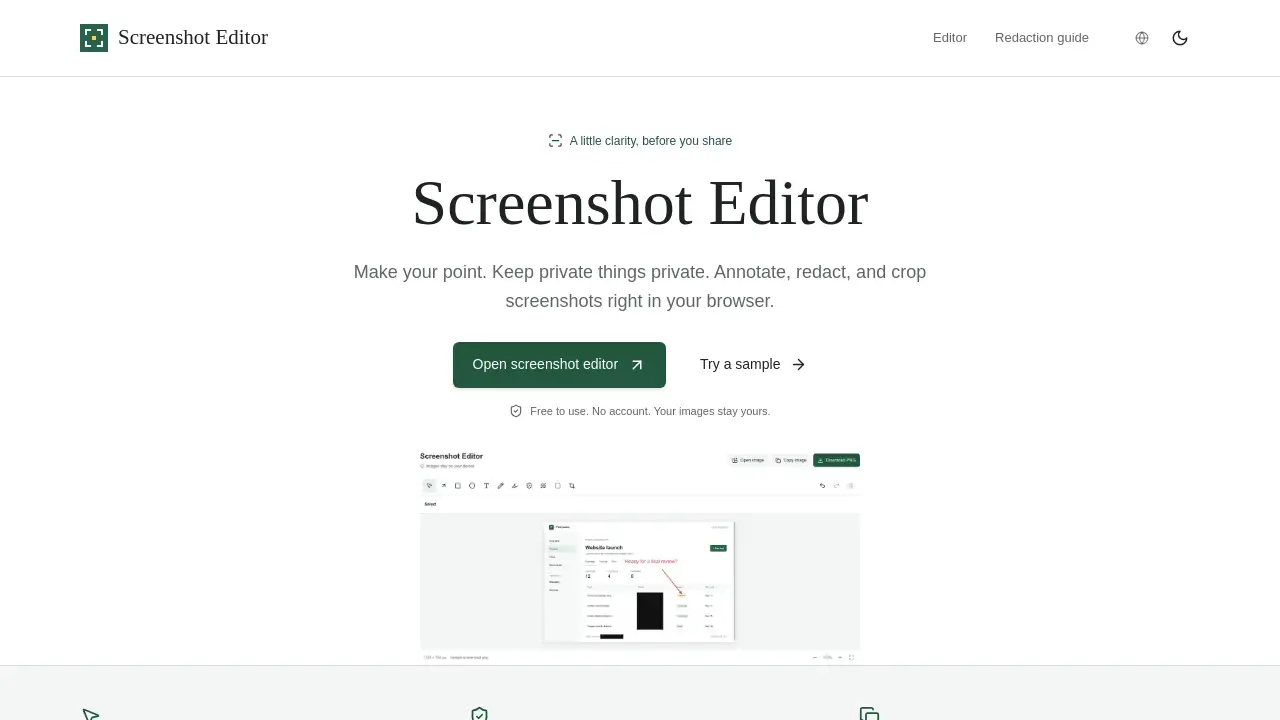
A screenshot editor helps people turn plain screen captures into clear messages. Screenshot Editor, available at screenshoteditor.org, is a free screenshot editor that runs directly in the browser. It lets users add arrows, text, shapes, and highlights, so they can edit screenshots online without installing software, creating an account, or dealing with watermarks. The entire workflow stays quick and simple.
What is Screenshot Editor?
Screenshot Editor is a browser-based utility for everyday image communication. Designed for clarity and privacy, this free screenshot editor gives people the tools to annotate a capture, including arrows that point at important parts, boxes that highlight menus, and text labels that add short explanations. Instead of uploading an image to a remote server, users can edit screenshots online in seconds.
The tool supports common situations such as bug reports, support replies, tutorials, and social media posts. It also handles private details by letting users cover names, account numbers, and addresses with an opaque black shape. Because editing works locally, the original file stays unchanged. For anyone looking to make a clear point, this free tool is a solid choice.
Key Features of Screenshot Editor
Arrows, Text, and Shapes
This screenshot editor includes arrows, text fields, rectangles, circles, and lines. Users simply pick a tool and click on the image to create clear visual notes. For teams, this is one of the fastest ways to annotate screenshots without leaving the browser.
Opaque Redaction Cover
To protect personal details, the tool offers a solid cover that hides names, addresses, and other sensitive content. The project’s own guide recommends this opaque method over blur for real privacy. Users can place the cover, flatten the image, and export a single PNG file.
Blur and Pixelation
For less important areas, blur and pixelation can soften backgrounds or hide identification details. Still, these effects are not guaranteed to hide information completely. Using the opaque cover is the safer option when the content must stay private.
Crop Tool
The crop tool removes unnecessary parts of a capture, such as extra tabs, empty space, or side panels. A tighter frame makes the edited screenshot easier to read and helps the audience focus on the relevant area.
Copy or Download PNG
After editing, users can copy the final screenshot to the clipboard or download it as a PNG. No watermark is added. This free screenshot editor keeps export simple so the result can be pasted into chat, email, or a support ticket right away.
Local-First Privacy
The images stay on the user’s device. There is no image upload, no cloud gallery, and no account requirement. This design works well for people who share contracts, messages, or other private images and prefer to redact a screenshot before sharing.
Use Cases for Screenshot Editor
Bug Reports and Developer Feedback
QA testers and developers can add arrows and text to illustrate a problem. This makes bug reports clearer and shortens the back-and-forth between teams.
Keeping Private Data Safe
People who need to share payment pages, personal chats, or login screens can use the redaction tools first. The standard approach is to cover sensitive areas, export a PNG, and inspect the file before sending it.
Tutorials and Training Content
Teachers and content creators can crop an interface, add highlights, and place labels on buttons. The result is a clean, no-watermark image that improves step-by-step lessons.
Product Feedback and Collaboration
Marketers, designers, and product managers can mark screenshots with notes before a meeting. Compared with long text explanations, an annotated image helps remote colleagues reach the same understanding faster.
How to Use Screenshot Editor
- Open the official website at screenshoteditor.org.
- Click the “Open screenshot editor” button or select “Try a sample” to test the interface.
- Load an image by uploading a PNG, JPG, or WebP file up to 20 MB. Clipboard paste may also work depending on the browser.
- Use arrows, text, shapes, highlights, blur, pixelation, or opaque covers to edit the screenshot.
- Use the crop tool if the image contains extra content, then copy the result or download the final PNG image.
No sign-up is needed at any step. The user opens the dashboard, produces an edited image, and shares it in minutes.
Target Audience for Screenshot Editor
- Customer support teams that reply with annotated screenshots
- Software developers and QA testers preparing bug reports
- Teachers, trainers, and online course creators
- Small business owners writing how-to documents
- Privacy-conscious people who share sensitive material
- Anyone who wants to edit screenshots online for free
Is Screenshot Editor Free?
Yes. The tool is free to use based on the current product page. Arrows, text, opaque redaction, blur, pixelation, cropping, and PNG export are all included without an account or a watermark.
| Plan | Price | Features |
|---|---|---|
| Free | $0 | Annotation, redaction, blur, pixelation, crop, copy, PNG download |
No premium plan is listed on the product page. Users who want the latest details can check the official website or read the screenshot redaction guide linked on the homepage.
Screenshot Editor's Pros and Cons
| Aspect | Pros | Cons |
|---|---|---|
| Pricing | Free, no paid plan mentioned | No premium extras mentioned |
| Privacy | No uploads; images stay on the device | Browser clipboard support can vary |
| Editing Tools | Arrows, text, redaction, blur, crop | Cannot edit original text without OCR/AI |
| Export | PNG download and copy; no watermark | PNG is the main export format listed |
| Limitations | Handles PNG, JPG, and WebP up to 20 MB | Large or unsupported formats will not open |
Frequently Asked Questions about Screenshot Editor
Is Screenshot Editor really free?
Yes. The current version of Screenshot Editor does not require payment, an account, or a watermark. All main editing features are included in the free plan.
Can the editor change text that is already in a screenshot?
No. Screenshot Editor does not use OCR or AI to recognize and replace existing text. Users can, however, place new text labels over an area or cover old text with the opaque redaction tool.
Is blur enough to hide sensitive information?
No. Blur and pixelation can leave behind recoverable clues. People who need strong privacy should use the solid cover, export one flattened PNG, and check the saved image before sharing.
What image formats and limits are supported?
The tool supports PNG, JPG, and WebP images up to 20 MB and 24 megapixels. The maximum size per side is 8192 pixels. Clipboard paste may depend on the browser, but PNG download is always available.
Are my images uploaded to a server?
No. According to the official product information, editing happens locally in the browser. There is no image upload, cloud gallery, or account requirement, and the original file is never changed.
Do users need an account?
No account is required. The free screenshot editor can be opened directly from the website, and the edited PNG can be downloaded immediately.
Screenshot Editor Tags
free screenshot editor, online screenshot editor, edit screenshots online, annotate screenshots, screenshot redaction tool, redact a screenshot, screenshot annotation tools, crop screenshots online, add arrows to screenshot, privacy-friendly screenshot editor, no watermark screenshot editor